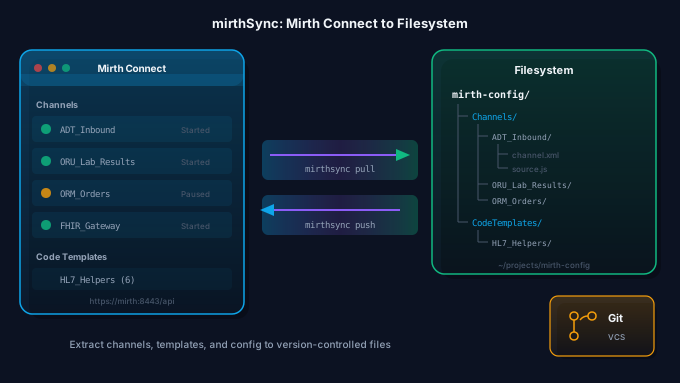
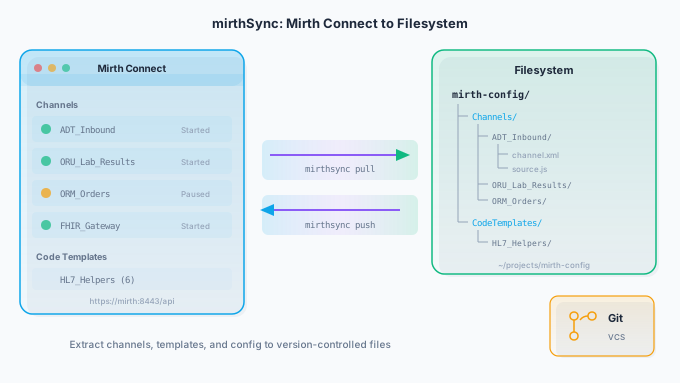
This is Part 1 of a series of posts describing the usage and benefits of utilizing mirthSync with Mirth Connect instances. Part 2 covers tracking changes with Git and Part 3 covers a CI/CD pipeline.
Updated October 2026 for MirthSync 3.8.0. This post was first written against mirthSync 2.0.2. The commands below are current and were checked against the 3.8.0 release. Some screenshots are from the original release, so the output you see will differ slightly, and the on-disk layout changed in version 3 (see below). MirthSync works with Eclipse Open Integration Engine (OIE) exactly as it does with Mirth Connect. If you would rather not use the command line at all, the MirthSync VS Code extension wraps the same tool in an editor.
MirthSync is an open source tool developed by Saga-IT LLC that interacts with the excellent Mirth Connect healthcare integration engine to provide many useful benefits to both the open source and closed source versions of Mirth Connect.
Please keep in mind that mirthSync is a free and open source tool that is under active development. Ensure that you have read the License and understand that Saga-IT LLC or any project contributors are not responsible for any issues related to use of the tool. We highly recommend that you utilize the tool only with development or staging environments.
Target Audience
mirthSync should be of interest to anyone that desires more insight into and control over changes being made to their Mirth Connect environments. With mirthSync you will be able to have a fine grained view of changes over time to a single Mirth Connect instance or multiple instances and you will also be able to selectively migrate changes between environments if desired.
Features
- Runs on any system. Windows, Linux, Mac, etc…
- Is able to work with any Mirth Connect instance whether the instance is running remotely or locally
- Reads Mirth Connect channels and configuration on any Mirth instance and writes them to the local filesystem as multiple files within a sensible directory structure
- Allows for fine grained tracking, management, and deployment of changes by integrating with version control systems (Git, Subversion, etc)
- Can take changes pulled from one Mirth Connect instance and then push those changes to another instance
- Selectively roll back and merge changes
- Manage and share code between different environments (prod, staging, dev)
- Run as a service that records changes between different time intervals
- Allows for making changes with a text editor if desired
- Allows for viewing changes over time to whole system or just individual channels, scripts, and configuration
- Works with Eclipse Open Integration Engine (OIE) as well as Mirth Connect
- Code uses a permissive open source license so you can use freely in any environment and even enhance or change the mirthSync code if desired
Prerequisites
You will need a recent mirthSync release downloaded.
You will also need a Java JRE or JDK, version 11 or higher (11, 17 and 21 all work; mirthSync 3.2 and later will not start on Java 8), from OpenJDK or Oracle.
On macOS the mirthsync.sh script also needs GNU coreutils and sed: brew install coreutils gnu-sed.
Installation
The installation process is very similar on Windows, Linux and Mac. The following steps will illustrate how you can set up mirthSync in a very minimal configuration to allow for pulling code to your local filesystem and then pushing code back again. Future blog posts or documentation will show more sophisticated ways to utilize mirthSync for a variety of purposes.
Note: The following instructions assume that you are in a Microsoft Windows environment. You can, however, run and use mirthSync anywhere that Java runs. In fact, mirthSync is mostly developed and utilized using Linux. Mac environments should be fine too. When in a unix-like environment utilize the equivalent commands and syntax that you see in the following instructions. (bash instead of powershell, forward slashes for paths, use the mirthsync.sh script instead of the .bat script, etc…)
Download and verification
Navigate to the list of MirthSync releases (https://github.com/SagaHealthcareIT/mirthsync/releases)
Click on the zip file for the most recent release (mirthsync-3.8.0.zip as of this update)
Navigate to the downloaded zip file and extract the contents. The launch scripts (mirthsync.bat and mirthsync.sh) are in the bin folder and the Java jar is in lib.
If you have Node.js installed,
npm install -g @saga-it/mirthsyncinstalls the same tool as amirthsynccommand, and you can skip the zip entirely.
Open a command prompt…
mirthSync is currently a command line tool. At this point you will need to run a command prompt or powershell. For our purposes, I’ll use powershell but the command prompt should work just fine.
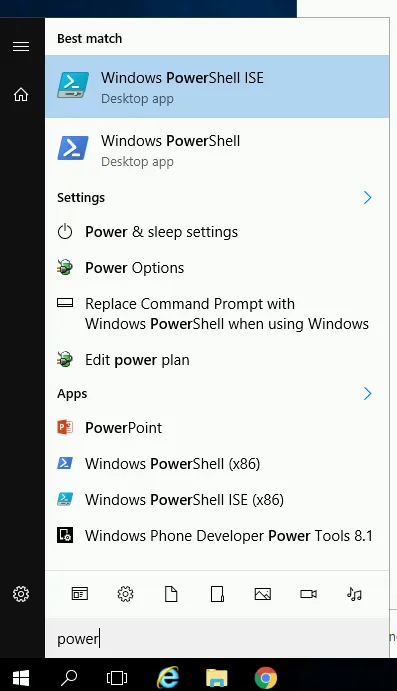
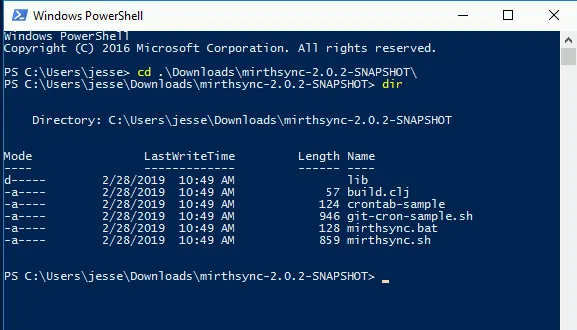
Navigate to the bin folder inside mirthSync’s unzipped files. The screenshot below is from the original 2.0.2 release, which kept everything in one folder.
Ensure that java is on your path by running the following command
java -versionYou should see JRE or JDK version information similar to the following..

If java is not on your path you will see an error message. At this point you will need to download a JRE and ensure the java command is on your PATH. There are many tutorials online that can be referenced if needed. For our purposes, we only need a JRE (but a JDK is fine) and it can be either OpenJDK or Oracle’s java.
Validate that you are able to run mirthSync. -V prints the version and -h prints the help instructions.
.\mirthsync.bat -V .\mirthsync.bat -h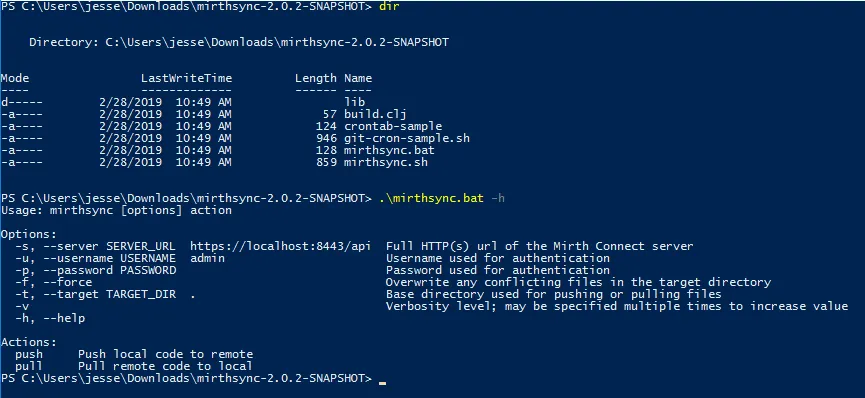
Running your first pull command
Within your command prompt or powershell, navigate to your mirthsync install directory.
Run a mirthSync pull command to fetch everything from a remote mirth instance to a local directory. This is a non-destructive operation. In other words - nothing is changed on the remote mirth instance. The command simply authenticates to mirth and then downloads to the local filesystem a bunch of xml files that represent channels, code templates, and more found within Mirth Connect. Here’s an example of a pull command. You will need to substitute -u admin and -p admin with your appropriate username and password for the instance. The server URL is the Mirth Connect API, which by default is on port 8443 and ends in /api.
.\mirthsync.bat -s 'https://192.168.122.58:8443/api' -u admin -p admin -t .\remotepull pullA few options worth knowing from the start:
- Keep the password off the command line. Set the
MIRTHSYNC_PASSWORDenvironment variable and leave out-p, or add-Ito be prompted for it. - Self-signed certificates. Most Mirth Connect and OIE servers use one. If the pull fails with a certificate error, add
-ito ignore certificate warnings. - Configuration map. It is left out of pulls and pushes unless you add
--include-configuration-map.
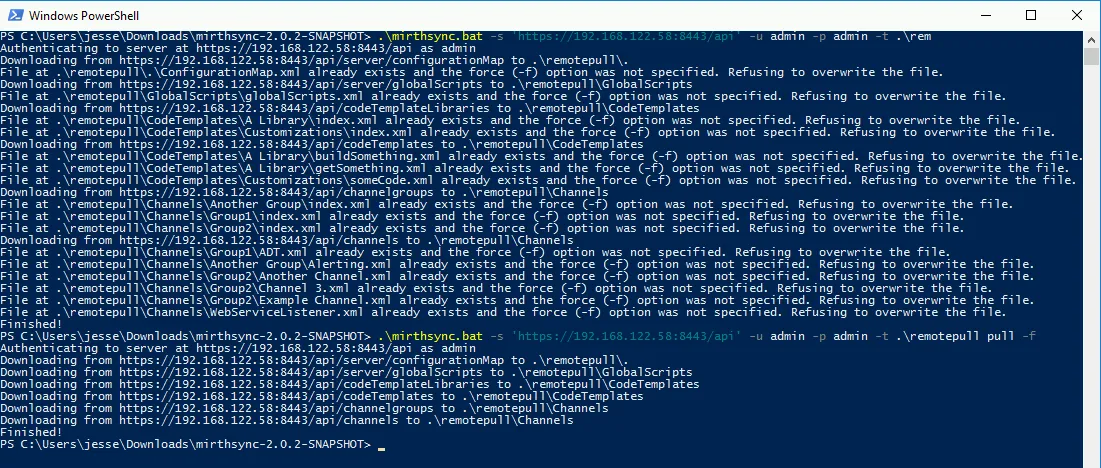
When you run the preceding command, you’re telling mirthSync to pull everything to a subdirectory called ‘remotepull’. The naming doesn’t matter and both full and relative paths are supported. All that is necessary is that your user account running the command has permissions to create that directory, if necessary, and place files within it. If any files already exist in the target location they will not be overwritten by default. Here’s an example of the output that you’ll see when executing the pull command…
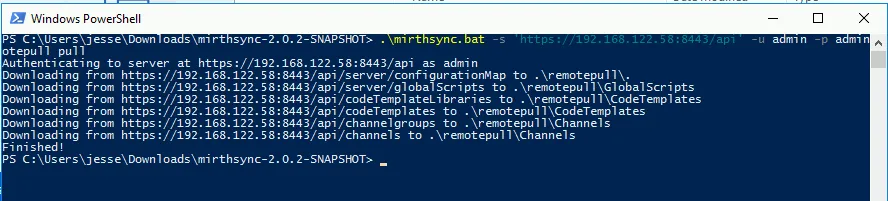
If you navigate in explorer to your target pull location you should now see something similar to the following…
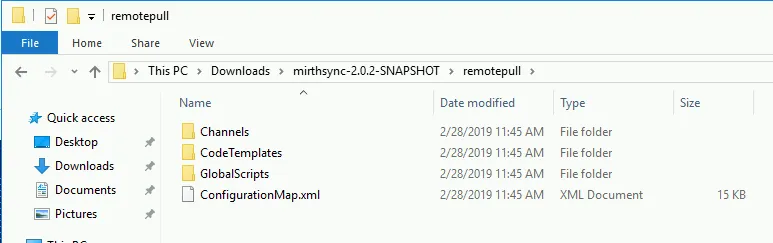
If you explore this directory structure you will find that mirthSync has split your Mirth channels, code, and configuration into a sensible directory hierarchy. Each file contained within these directories represents a subset of your Mirth Connect instance. The XML files contain what you would see if you backed up your Mirth Connect instance.
Since version 3, mirthSync also pulls the JavaScript out of each channel, code template, and global script into its own .js file, so you can read and edit it in any editor without wading through XML. Channels that are not in a group land in Default Group. Here is a trimmed example of what you might see, depending on your channels, groups, and libraries:
remotepull├── Alerts│ └── test alert.xml├── Channels│ ├── Default Group│ │ ├── Http 3080│ │ │ ├── DeployScript.js│ │ │ ├── PreprocessingScript.js│ │ │ └── destinationConnector-Destination Hello.js│ │ └── Http 3080.xml│ └── This is a group│ ├── Hello DB Writer│ │ ├── sourceConnector-transformer-step-0.js│ │ └── destinationConnector-Hello Database Writer-transformer-step-0-step1.js│ ├── Hello DB Writer.xml│ └── index.xml├── CodeTemplates│ └── Library 1│ ├── Template 1│ │ └── Template 1.js│ ├── Template 1.xml│ └── index.xml├── GlobalScripts│ ├── globalScripts│ │ ├── Deploy.js│ │ └── Preprocessor.js│ └── globalScripts.xml└── Resources.xmlIf you prefer whole XML files, -m items keeps each channel and code template as a single XML file, and -m backup writes one file equivalent to a Mirth Administrator backup.
Now that you’ve pulled your code down to your local directory you may wonder what happens if you run the command again. If you run the same command again against the same target directory that has already been populated - mirthSync will refuse to overwrite any existing files. Any new channels or other Mirth objects with different names will, however, still be pulled. Here’s an example of mirthSync refusing to overwrite files…
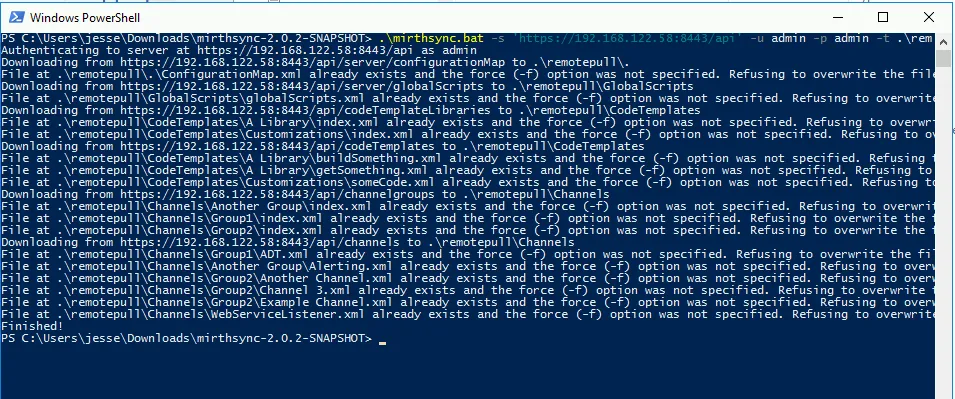
To allow for mirthSync to update existing files within your target directory you may add the -f parameter to ‘force’ mirthSync to overwrite…
Every pull also checks for local files whose channel or template no longer exists on the server, and warns about them. Add --delete-orphaned to remove them (with -I to confirm each one first).
Pushing from your local target pull directory to the same or different Mirth Connect instance
Now that you have a local repository of channels and more within your target directory on your filesystem you may wish to push the changes to a remote Mirth Connect instance. You can use the same instance you pulled everything from, or you can push to a completely different instance.
Warning- the push command will overwrite any matching channels, channel groups, configuration map, global scripts, code templates and libraries within the destination instance! If the destination instance does not contain a matching item - it will be created. Existing channels that don’t exist in the local filesystem should be fine.
Note: the following commands assuming the goal is to have the destination server perfectly match the server that was pulled from. In future posts we’ll describe how you can manage ‘merging’ changes between environments that have different configurations
within a command prompt - navigate to your mirthsync installation directory (location of mirthsync.bat, etc)
The following command will take any items that you have within your previously ‘pulled’ target directory and update the remote Mirth Connect instance to contain everything within your local target directory. The syntax of the command is identical to the pull command except you use the verb push. The push command checks revisions for code templates, code template libraries, and channel groups: if one of those on the server has a different revision from the copy you are pushing (because it was changed there since), Mirth refuses to overwrite it, and mirthSync ends with “Failure(s) were encountered during the push” and a non-zero exit code. Channels get no such protection: a channel changed on the server is overwritten by your copy either way. Adding -f skips the check and overwrites everything. Please be careful and understand the consequences before you run push, with or without -f.
.\mirthsync.bat -s 'https://192.168.122.58:8443/api' -u admin -p admin -t .\remotepull pushA push saves channels on the server but does not deploy them. Add --deploy-all to deploy every pushed channel in one step at the end. (In a script, prefer --deploy-changed --deploy-new: through mirthSync 3.8.0 a failed deploy under --deploy-all is only logged and the command still exits 0.) -r limits a pull or push to one path, for example -r "Channels/This is a group", and combined with --deploy-changed it keeps the redeploy close to what you pushed. (Without -r, --deploy-changed can redeploy everything, because a push re-saves every channel it includes and the save can bump a channel’s revision. Either way it also deploys any channel with undeployed edits made in the Administrator.)
You should see something similar to the following…

Use Mirth Connect Administrator to verify that the destination instance was successfully updated
Done!
Next steps
- Using MirthSync with Git for Version Control: track every change to your channels.
- CI/CD for Mirth Connect with mirthSync: push to staging automatically.
- MirthSync CLI reference: every option, with examples.