MirthSync Plugin for Mirth Connect & OIE
Complete version control for Mirth Connect: free, open-source (Apache 2.0) Admin Console extension with embedded Git, graphical interface, and configuration presets. No terminal required.
Updated
Git Version Control for Mirth Connect: No Terminal Required
All-in-one free, open-source extension for Mirth Connect version control with embedded Git and a graphical interface. Apache 2.0 licensed.
Admin Console Plugin. This extension installs directly into your Mirth Connect or OIE Admin Console. Once installed, all MirthSync functionality (including full Git version control) is accessible through the Admin Console interface. No separate CLI installation, no Git setup, no terminal required.
The plugin operates in both client-side and server-side execution modes. Run operations locally on your workstation or remotely on the Mirth server, all from within the Admin Console. Store preset configurations for different environments, customize Git metadata, and control configuration management: exactly how channels and code templates are extracted and deployed across environments with backup capabilities.
Platform Compatibility
- Open Source Mirth Connect 4.x
- Open Integration Engine (OIE)
- Windows, Linux, macOS
What's Included
- Graphical interface (UI)
- MirthSync CLI tool
- Embedded Git binary
- Configuration presets
Explore the Plugin Interface
See the MirthSync plugin in action with our interactive screenshot gallery.
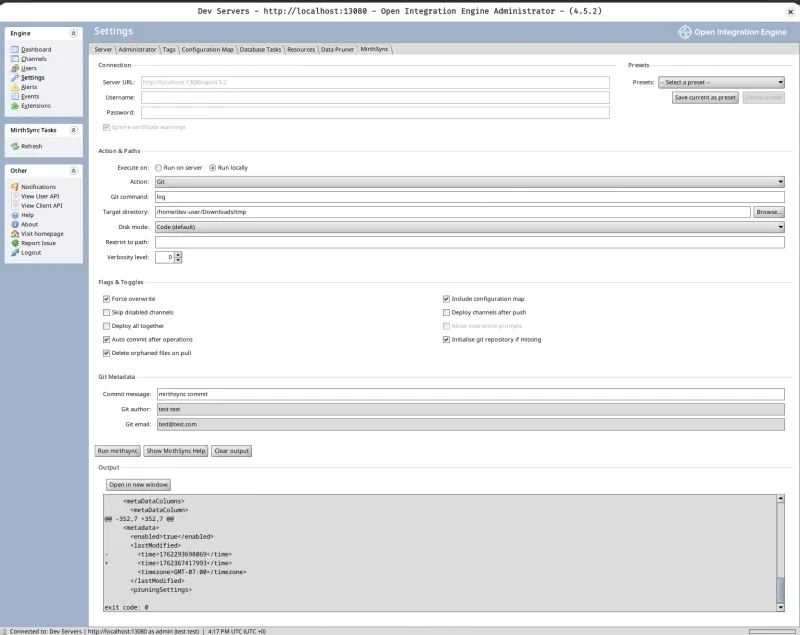
Complete Control Panel
The main interface provides access to all MirthSync and Git operations with advanced options.
Key Features:
- Save Presets Store frequently-used configurations
- Run Locally or Remotely Execute on server or client machine
- Built-in Git Commands Full Git integration without external tools
- Advanced Flags Fine-tune operations with multiple toggles
- Git Metadata Configure commit author and messages
- Real-time Output See command results instantly
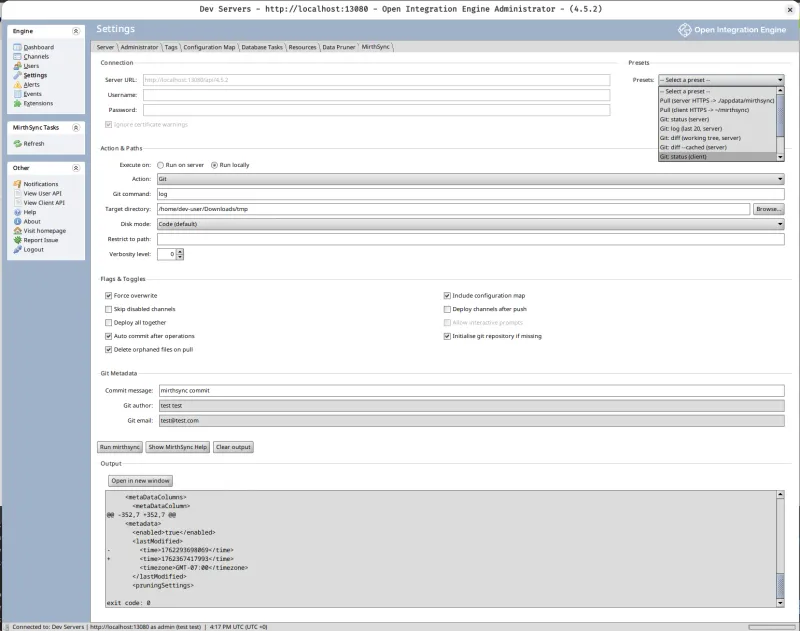
Save & Reuse Presets
Create presets for common operations and switch between configurations with one click.
Key Features:
- Quick access to saved configurations
- Store multiple environment settings
- One-click operation switching
- Manage workflows efficiently across environments
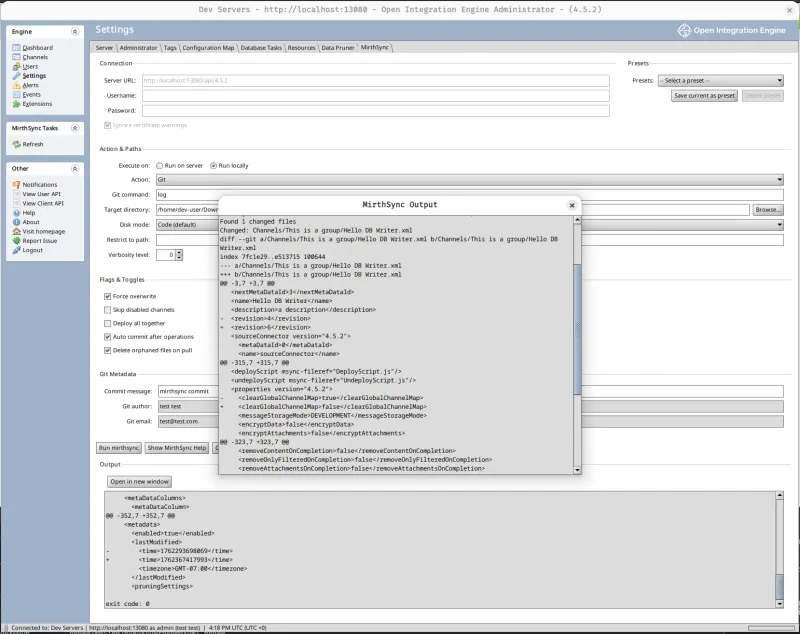
Open Output in New Window
View command output in a separate window for easier reading and comparison.
Key Features:
- Separate window for better visibility
- Review diffs and Git logs clearly
- Compare changes side-by-side
- Syntax highlighting for output
Mirth Connect Version Control Commands
The plugin provides visual controls for all MirthSync CLI commands. Every operation you can run from the command line is available through the Admin Console interface.
mirthsync pull
Pull server code to filesystem. Extract configurations from Mirth Connect or OIE server and save them as version-controlled files in your local repository.
mirthsync push
Push filesystem code to server. Deploy your file-based configurations back to Mirth Connect or OIE, updating channels and code templates on the target server.
mirthsync git
Git version control operations. Manage your repository with built-in Git commands including init, commit, branch, merge, push, pull, and more. No external Git installation required.
mirthsync --help
Complete CLI reference. View detailed documentation for all commands, flags, and advanced configuration options available in the MirthSync command-line interface.
CLI ReferenceGet Started in 3 Steps
Install the MirthSync Plugin in minutes and start using version control directly in your Admin Console.
Download Plugin
Download the MirthSync Plugin ZIP from our website (free after registration).
Download & Install GuideInstall Extension
Copy the JAR to your Mirth extensions directory and restart the server.
/extensions/When to Use the Plugin vs CLI
The plugin and CLI execute the same MirthSync commands. Choose based on your workflow and preferences.
Use the Plugin When:
- You're already working in the Admin Console
- You prefer visual interfaces over command-line tools
- You need to review changes and diffs visually
- You want to manage Git operations alongside MirthSync commands
- You're making ad-hoc configuration changes
Use the CLI When:
- You're automating in CI/CD pipelines
- You're working from your local development machine
- You need to script operations or integrate with other tools
- You prefer command-line workflows
- You're running scheduled or batch operations
Fully Compatible: Both tools work with the same file-based repository structure. You can use the plugin for day-to-day work and the CLI for automation. They're fully compatible.
Built-in Git for Mirth Connect DevOps
Full Git repository management and DevOps workflows for Mirth Connect and OIE from the Admin Console. Enable CI/CD automation with no external Git installation required.
Repository Setup
- Initialize repositories
- Clone from remotes
- Configure connections
- View status
Commit & History
- Stage & commit changes
- View commit history
- Compare differences
- Browse by commit
Branch & Remote
- Create & switch branches
- Merge branches
- Push & pull remotes
- Resolve conflicts
Install Once, Track Every Change
Start version controlling your Mirth configurations today: 100% free, open-source (Apache 2.0), installs in under 5 minutes, your data stays local.