Mirth Connect Integration
Channel development, upgrades, and OSS Mirth / OIE migrations from our integration team.
Explore Mirth Connect IntegrationA real development environment for Mirth Connect and the Open Integration Engine: IntelliSense, real-time diagnostics, channel tree views, and multi-server sync, from VS Code, Cursor, or Windsurf.
Updated



Connect to your servers, write transformer code with full IntelliSense, test against a throwaway local engine, then sync your channels back to the server. Pick one to jump ahead.
MirthSync for VS Code brings Mirth Connect and OIE into the editor you already use: browse channels in a tree, get IntelliSense for the Mirth JavaScript API, and push or pull to any server without leaving VS Code.
Interactive gallery showing MirthSync for VS Code features: IntelliSense, sync, connection management, and more.
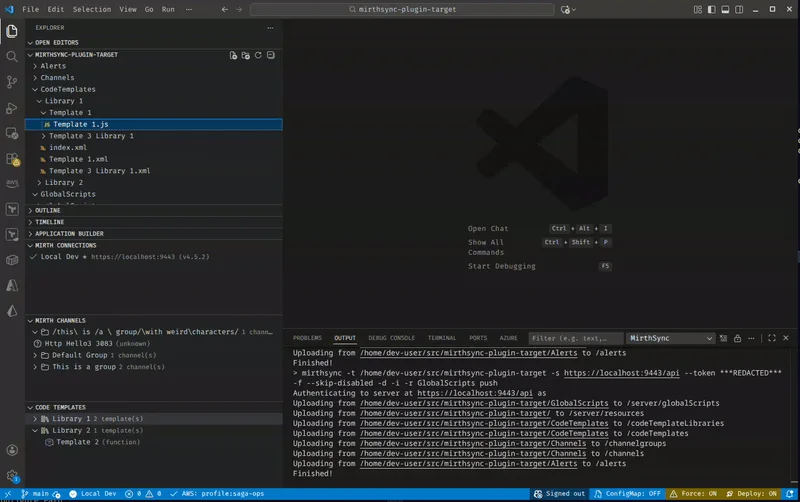
Get autocomplete suggestions and hover documentation for Mirth Connect's JavaScript API as you type.
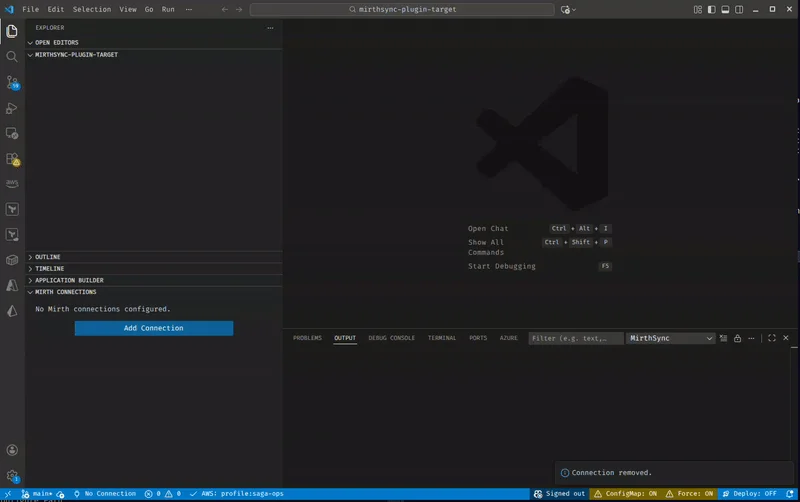
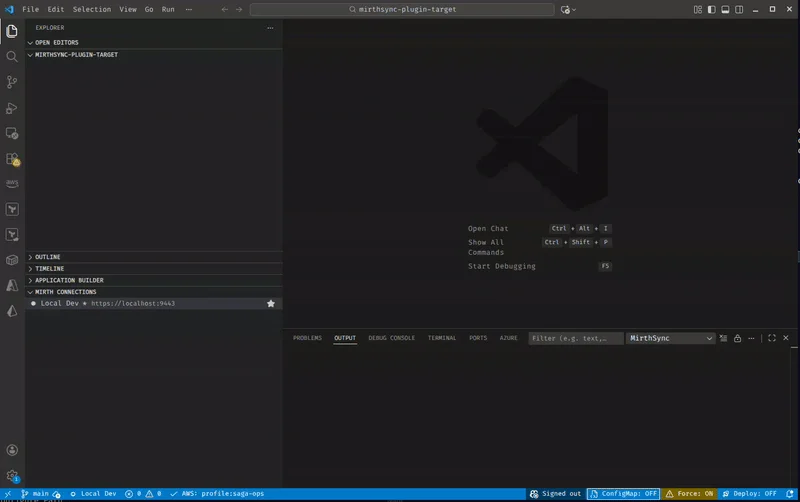
Add and manage multiple Mirth Connect server profiles with secure credential storage.
Pull channels and code templates from your server, edit in VS Code, and push changes back.
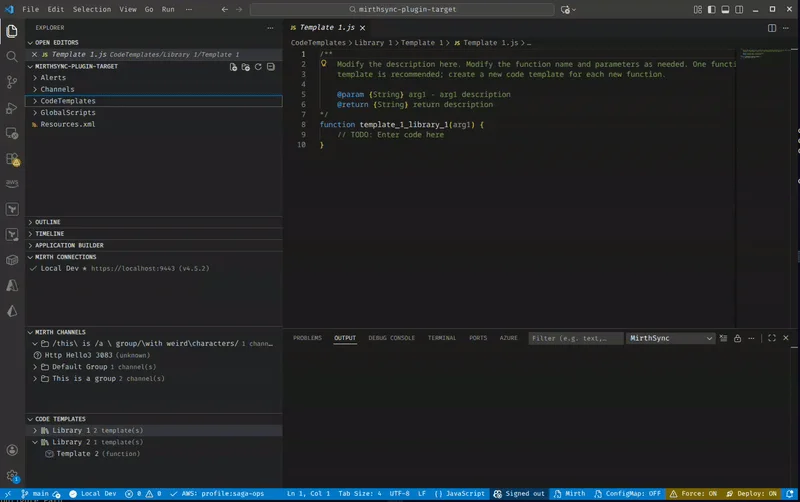
Right-click on Channels or CodeTemplates folders to sync directly from the file explorer.
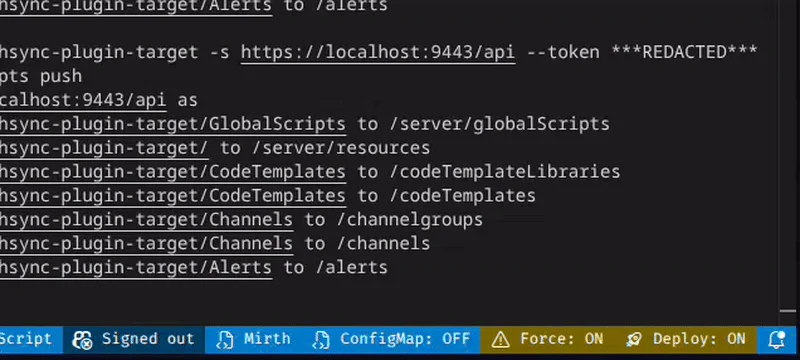
Quick toggles in the VS Code status bar for common MirthSync settings.
Mirth Connect's Admin Console makes you write transformer JavaScript in a tiny textarea: no autocomplete, no Git, no AI. MirthSync brings that work into the editor you already use.
Run MirthSync in Cursor, Windsurf, or Copilot-enabled VS Code and your AI assistant can read, explain, refactor, and write Mirth channel JavaScript, grounded by the extension's Mirth API IntelliSense, and safe to test against the one-command local stack. The Admin Console has none of that.
IntelliSense, hover docs, go-to-definition, rename, and find-references across the Mirth JavaScript API, instead of a plain textarea.
Pull channels to your workspace, diff and review changes, and commit them like normal code. Version control your integration layer.
Multi-cursor, project-wide search across channels, and 29 tab-completion snippets for common Mirth patterns.
Click any tile: channel browsing, IntelliSense, multi-server sync, diagnostics, and more, each shown in the editor.
Test channels against a real engine without installing anything on your host beyond Docker. MirthSync scaffolds and runs a self-contained Mirth/OIE + Postgres stack from the command palette.
Run MirthSync: Initialize Local Mirth and the extension scaffolds .mirthsync/local/ with a Docker Compose stack:
sagait/engine), on 127.0.0.1:8443mirthsync + git, so sync runs inside the stack and you don't need the CLI on your hostThen MirthSync: Start Local Mirth builds the tools image, starts the containers, and auto-creates a Local Mirth connection. If port 8443 is busy it detects the conflict and remembers an alternate. Point the compose file at openintegrationengine/engine for vanilla OIE.
Install the extension, add a connection, and start developing, all in under two minutes.
Install from the VS Code Marketplace: search for "MirthSync" or click Install from Marketplace.
VS Code MarketplaceOpen the MirthSync sidebar, click Add Connection, and enter your Mirth Connect server URL and credentials.
Credentials stored securely via VS Code Secrets APIBrowse channels in the tree view, pull to your workspace, edit with IntelliSense, and push changes back.
VS Code Extension GuideAll MirthSync operations available directly from the VS Code command palette. Press Ctrl+Shift+P and type “MirthSync” to get started.
MirthSync: Pull AllPull all channels, code templates, and global scripts from the connected server to your workspace.
MirthSync: Push AllPush all local changes back to the connected Mirth Connect server.
MirthSync: Git Status / DiffView Git status and diff for your MirthSync workspace directly from the command palette.
Complete reference for all MirthSync commands, settings, snippets, and diagnostics in VS Code.
Extension ReferenceFree, and installs in seconds. Bring Mirth Connect development into VS Code, Cursor, or Windsurf.
Install for VS CodeYes. MirthSync is published to both the VS Code Marketplace and Open VSX, so it installs in VS Code, Cursor, Windsurf, and VSCodium, any editor that supports the Open VSX registry.
MirthSync itself ships no AI, but because it runs in VS Code, Cursor, and Windsurf, your editor’s AI assistant (Copilot, Cursor, Windsurf Cascade) can read, explain, and write Mirth channel JavaScript. The extension supplies Mirth JavaScript API IntelliSense so the AI’s suggestions are grounded, and the one-command local Mirth stack lets you test them safely.
MirthSync talks to the standard Mirth REST API, so it works with the open-source lineage: open-source Mirth Connect through 4.5.2 (the last open-source release), the Open Integration Engine (OIE), and BridgeLink. It does not target the commercial Mirth Connect releases (4.6 and later).
Yes. It is free, with no license fees. Install it from the VS Code Marketplace or Open VSX.
For syncing against a remote Mirth server you need the mirthsync CLI on your host. The Local Mirth feature bundles mirthsync inside its Docker stack, so for local testing you only need Docker.
No. Your channel, template, and script content, server URLs, and credentials stay local and are never transmitted. The extension sends only anonymous usage telemetry (command names, durations, and outcomes).
Work with Saga
Keep reading
Free VS Code extension for Mirth Connect development. IntelliSense, code diagnostics, and channel sync. Install in seconds from the Visual Studio Marketplace.
Stop your contact information from being used in advertising audiences. Enter the email you used when you contacted Saga IT.
We've recorded your request. You'll be removed from advertising audiences within 24 hours.
We don't sell personal information. We do "share" hashed contact info with Google Ads for Customer Match. Opting out removes you from that audience within ~24h. To request full deletion of your data, email info@saga-it.com.