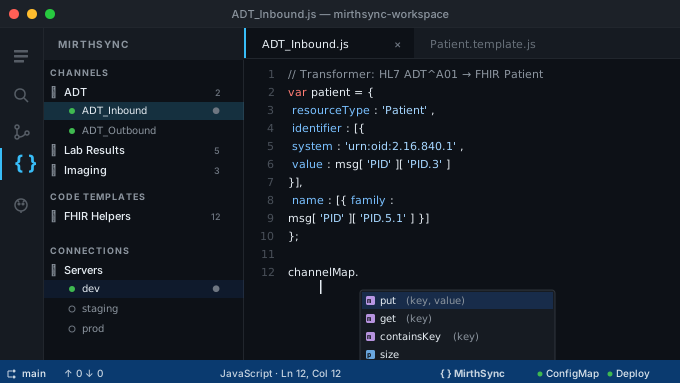
If you have ever written a transformer or a deploy script inside the Mirth Connect Administrator, you know the feeling. The built-in editor is more capable than it gets credit for (it has JavaScript autocomplete, code folding, and find-and-replace), but it stops at the edge of that one window. There is no autocomplete that knows the Mirth-specific globals: channelMap, globalMap, responseMap, the msg and tmp aliases, the SourceMap. There is no hover documentation, no project-wide diagnostics, and no debugger that lets you set a breakpoint inside a transformer and step through it. The editor itself has not meaningfully changed in the eight years we have been working with the Administrator. For day-to-day channel development (the place most of the actual work happens), the experience has fallen behind the rest of the JavaScript world by about a decade.
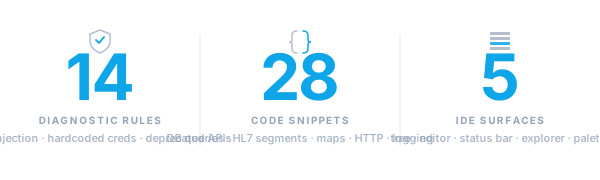
We have been quietly building a way out. MirthSync for VS Code is now live on the Visual Studio Code Marketplace, and it brings the parts of a modern IDE that we missed most into Mirth Connect and Open Integration Engine channel development: IntelliSense for the Mirth JavaScript API, real-time diagnostics for security and deprecation issues, a sidebar tree view for channels and code templates with multi-server connection profiles, a Java debugger that attaches to a running Mirth process, and 28 code snippets for the patterns we type every week.
New in the latest release: a one-command Local Mirth Docker stack: spin up a throwaway OIE + Postgres locally, with the extension auto-wiring a “Local Mirth” connection profile and routing CLI calls into the stack’s tools container. Onboarding a new developer to a Mirth workspace is now a single MirthSync: Start Local Mirth away.
This post walks through what the extension does and why each piece exists. It is a companion to the product page, which is the reference; this post is the story.
The Mirth Connect Editor Problem
Mirth Connect’s Administrator is a Java Swing application that ships with the engine. Its embedded code editor (the one that opens when you click into a transformer or a destination response) is competent at the basics: line numbers, syntax coloring, find-and-replace. Beyond that, it is essentially a text area.
A few specific gaps come up over and over on real engagements:
- No autocomplete for Mirth’s globals. A new developer writing their first transformer has to memorize that
msg['PID']['PID.5'][0]['PID.5.1'].toString()is how you read a patient’s family name in Mirth’s HL7 v2 representation. There is nothing in the editor that suggestsPIDis a valid key, or that.toString()is the right tail. The Rhino engine that runs the script does not surface its objects to the editor at all. - No diagnostics. Common security issues (building a SQL query by string-concatenating untrusted input, hard-coding a database password into a deploy script, calling a deprecated
DatabaseConnectionmethod) are invisible until they show up in production logs or a code review. - No debugger. When a transformer silently produces the wrong output, the standard tool is
logger.info(...)and a redeploy. There is no way to set a breakpoint on line 42 of a destination transformer and inspect the message and the channel map without leaving the Administrator. - No multi-cursor, no peek references, no go-to-definition, no document outline, no inline rename. The features that we take for granted in any modern editor are not in the Administrator and never will be. It is a Swing application from a different era.
For Saga’s clients running Mirth Connect or OIE in production, the editor isn’t the only place channels get touched: the MirthSync CLI handles CI/CD, and the MirthSync Plugin brings a visual interface to the Administrator itself. But the editor is still where most channel logic gets written. That is the part of the loop the VS Code extension is built to fix.
What MirthSync for VS Code Is
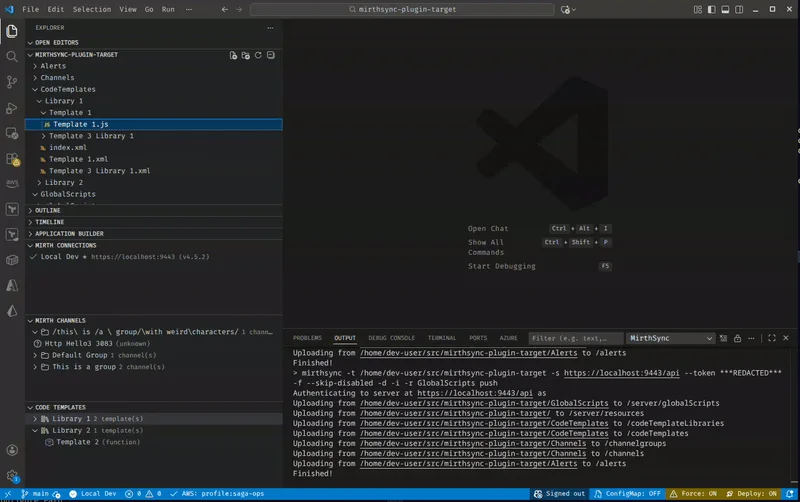
The extension is a thin shell around three things: the existing MirthSync file structure, a language server with deep knowledge of the Mirth JavaScript API, and VS Code’s command palette. You install it from the Marketplace, point it at a Mirth Connect or OIE server, pull your channels and code templates into a workspace, and you are editing Mirth code with the same tools you use for any other JavaScript project.
The on-disk format is unchanged from the MirthSync CLI. The same Channels/, CodeTemplates/, GlobalScripts/, and ConfigurationMap.xml that the CLI produces is what the VS Code extension reads and writes. That means a workspace pulled by mirthsync.sh pull works in VS Code, and a workspace edited in VS Code pushes back through the CLI in CI without a translation step. There is no proprietary format and no lock-in: leave the extension and your Git history is unchanged.
IntelliSense for the Mirth JavaScript API
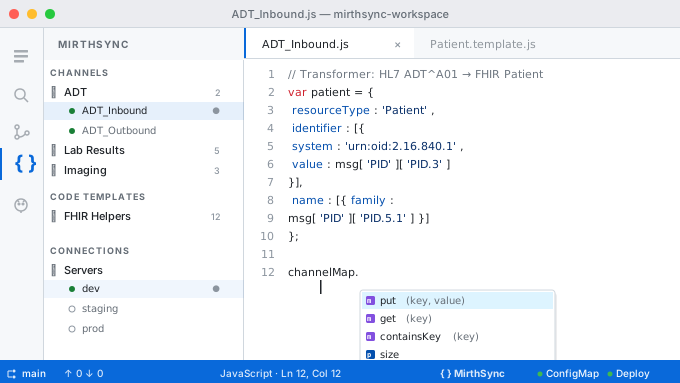
This is the feature that changes the day-to-day experience the most. The extension knows the shape of channelMap, globalMap, responseMap, connectorMap, globalChannelMap, and sourceMap. It knows the methods on each (put, get, containsKey, size) and it knows their signatures. It knows the message aliases (msg, tmp) and the methods on Mirth’s representation of HL7 v2, XML, and JSON messages. As you type, the autocomplete dropdown surfaces the right options, with type signatures and hover documentation pulled from the Mirth source.
The practical effect is that a developer who has never written a Mirth transformer before can sit down and have the editor teach them the API. The patterns that used to require a tab open to the Mirth user guide (what does responseMap.put actually take, what does msg['MSH']['MSH.9']['MSH.9.1'] look like) are surfaced inline. For experienced developers, the time saved is smaller per-keystroke but adds up across a working day.
The 28 snippets that ship with the extension cover the patterns that come up in nearly every channel: a parameterized JDBC query, a guarded HTTP POST, a logger.info with structured fields, an HL7 segment lookup with a null-safe fallback, an FHIR resource scaffold, a try/finally around a DatabaseConnection. They are tab-completable from the editor: type mirth-jdbc, hit Tab, fill the placeholders.
Real-Time Diagnostics
The diagnostics engine ships 14 rules out of the box. They split into three categories:
Security rules. SQL queries built by string concatenation, hard-coded credentials in deploy scripts, eval-style code paths, and a few other patterns we have seen cause incidents on real engagements. These light up as you type, the same way a TypeScript error does: squiggly underline, hover tooltip, surfaced in the Problems panel.
Deprecation rules. Mirth Connect 4.x deprecated several methods that still work but will not survive the next major release. The extension flags calls to those methods and suggests the replacement. This matters most for clients running long-lived channels written against earlier versions of Mirth. The deprecations are usually invisible until an upgrade reveals them.
Common-mistake rules. A responseMap.put(...) from inside a source transformer (where it does nothing). A msg['PID'] access without a null guard against an ADT^A04 that is missing the segment. Forgetting to commit a DatabaseConnection. The kinds of bugs that have a footprint in a code review and get caught about half the time.
None of these rules require configuration. The extension reads the Mirth Connect version from the connection profile and applies the appropriate ruleset.
Channel Sync with Multi-Server Profiles
The sidebar tree view is rooted in the connection profile, so switching between development, staging, and production is one click. Each profile stores its credentials in VS Code’s Secrets API (the same mechanism VS Code uses for GitHub PATs and Azure tokens), not in plaintext settings.
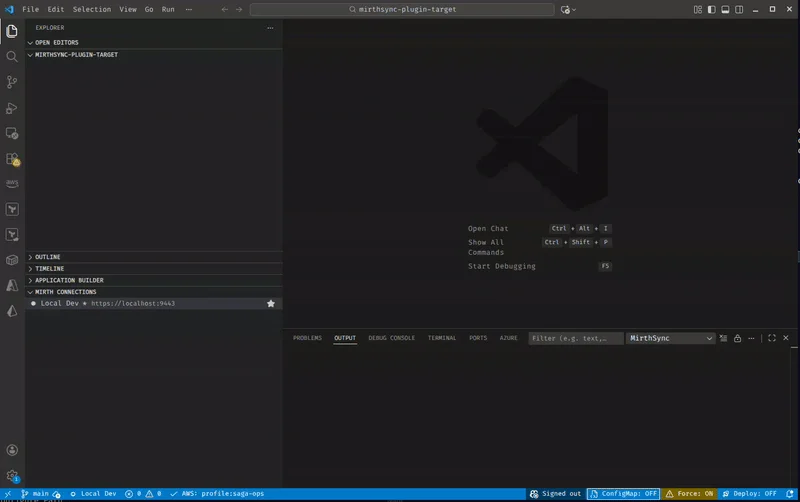
Sync is granular: pull a single channel, a group, or everything. The same goes for push. Three status-bar toggles control the global behavior of any sync operation: ConfigMap (include the configuration map in the sync), Force (overwrite the destination even when the local copy looks stale), and Deploy (trigger a deploy on the destination server immediately after a successful push). The toggles are visible at all times, so the difference between “push these changes” and “push these changes and deploy them to prod” is one glance away from being made deliberately, not accidentally.
For workflows that integrate Git (which is most of them), the extension respects the workspace’s Git status. The sidebar shows modified files; the regular VS Code Git panel shows the diff against the last commit. The MirthSync workspace is just a Git repository with channel XML in it, so all of the editor’s existing Git tooling (branch switching, blame, history) works without configuration.
Local Mirth: One Command to a Throwaway Stack
If you just want to get Mirth/OIE/BridgeLink running on your machine (independent of VS Code), our Docker quickstart post walks through both the 5-minute Local Mirth path and the traditional installer path. This section covers the Local Mirth feature itself in more depth.
The original problem this solves is onboarding. A new developer joining a Mirth project used to need to install a JRE, download the Mirth Connect installer, configure a database, create an admin user, install MirthSync, and then start writing channels. On a fresh laptop that was a half-day if everything went well and a couple of days if it didn’t.
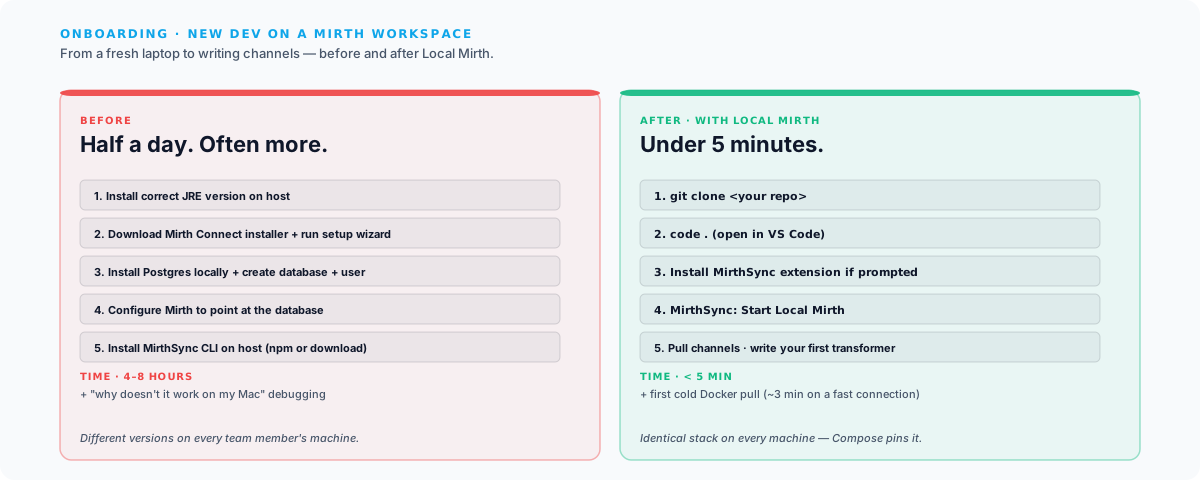
MirthSync: Initialize Local Mirth scaffolds a .mirthsync/local/ directory into your workspace containing a Docker Compose stack with three services:
mirth: Saga-packaged Open Integration Engine (sagait/engine, OIE with Saga plugins preinstalled), bound to127.0.0.1:8443.postgres: Mirth’s backing database, on a named volume so state survives aStop.tools: Alpine + JRE +mirthsync(andcurl/git/jq), used for running CLI operations inside the stack so you don’t need anything on your host beyond Docker.
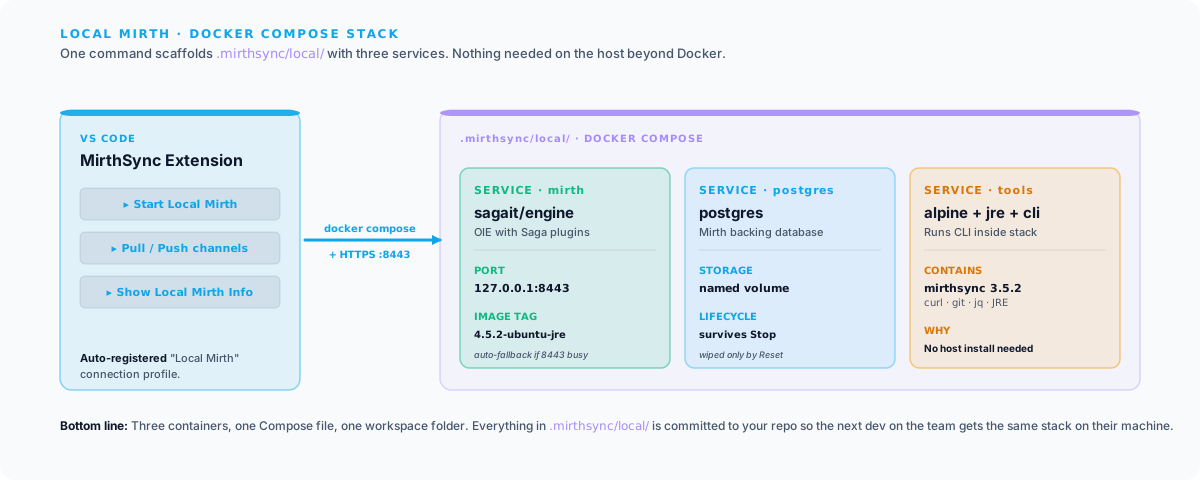
MirthSync: Start Local Mirth builds the tools image, brings the stack up, and registers an auto-managed “Local Mirth” connection in the Connections tree view. If port 8443 is already in use on your machine, it detects the conflict, suggests an alternate port, and persists the choice in .mirthsync/local/.env for next time.
From there, the workflow is the same as against any other Mirth: pull, push, deploy from the tree view or the command palette. The difference is that the credentials are auto-populated, the engine is throwaway, and the entire stack tears down with Stop Local Mirth. There are five lifecycle commands in total:
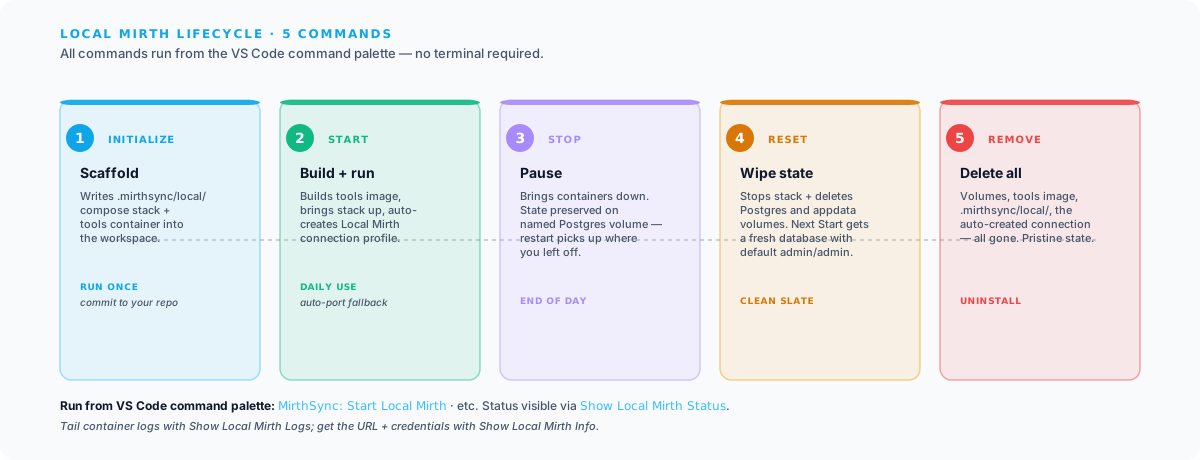
Two settings control the runtime: mirthsync.localMirth.mirthImageTag (defaults to 4.6.0-ubuntu-jre, points at any sagait/engine tag) and mirthsync.localMirth.mirthsyncVersion (the CLI version baked into the tools image; defaults to 3.7.0). Need additional ports forwarded (an MLLP listener on 6661, an HTTP listener on 8081)? Drop them into mirthsync.localMirth.additionalPorts and the extension manages a docker-compose.override.yml on the next Start.
To open the Mirth Administrator against the local server, install a launcher on your host and point it at the URL shown in Show Local Mirth Info. Two launchers work today:
- Ballista: community launcher used with Open Integration Engine. Requires a host JRE 8+.
- NextGen MCAL: legacy NextGen Mirth Connect Administrator Launcher. Bundles its own JRE.
Default credentials are admin / admin. The Administrator prompts you to change them on first login.
Java Debugger Integration
Channels run on the JVM. Mirth’s Rhino engine evaluates JavaScript transformers inside that JVM, which means the JavaScript code is reachable from a Java debugger if you can get one to attach. The extension ships pre-built debug configurations for three common deployments: a local Mirth/OIE process, a process running in a dev container, and a remote server reachable over SSH or a VPN.
Once attached, breakpoints in transformer JavaScript work the way they do anywhere else. You can inspect msg, walk the channel map, evaluate expressions in the immediate window, step over and into. For channels that fail in production with a logic error that does not reproduce in development, the debugger is the difference between “it took a week to figure out” and “it took an afternoon.”
The debug story is not finished: Mirth’s threading model and the way transformers get invoked from connectors mean some breakpoints land in surprising places, and a few JVM configuration knobs are needed to make the debug port reachable from a remote machine. The next post in this series will cover the operational side of getting the debugger working against a production-like target.
Where It Fits in the MirthSync Ecosystem
The extension is the third tool in a set that share one on-disk file structure. They are interchangeable, not competing.
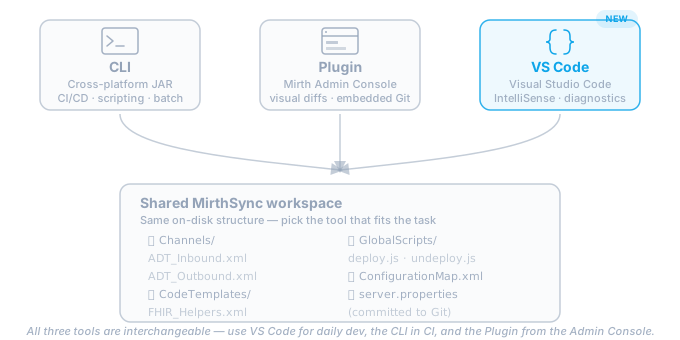
The CLI is the right tool when there is no human in the loop. A GitHub Actions workflow that pushes channels to staging, a scheduled Drone job that backs up production channels nightly, a release script that diffs two environments: these all want a binary they can shell out to. The CLI is what we point at in our CI/CD blog post.
The Plugin is the right tool when the user is in the Administrator already. A consultant who has the Administrator open to investigate a channel, who wants to see a Git diff or commit a change without context-switching to a terminal, can do it without leaving the window they are already in.
VS Code is the right tool when the work is writing channel code. The IntelliSense, the diagnostics, the debugger, the snippets, the multi-cursor edits across a dozen transformer files at once: these are editor features, and they belong in an editor. The extension exists to make that editor be the one most healthcare-IT developers already use.
For most shops, all three are the right answer at different points in the same week. They share the workspace; switching between them does not require any conversion or migration step.
Installing the Extension
The extension is on the Visual Studio Code Marketplace and on Open VSX for Cursor, VSCodium and other VS Code forks. To install:
- Open VS Code → Extensions sidebar (
Ctrl+Shift+X). - Search for
MirthSyncand pick the one published bySagaITLLC. - Install. The MirthSync icon appears in the activity bar.
- Click the icon → Add Connection, fill in your Mirth Connect or OIE server URL and credentials.
- Right-click the connection → Pull All to populate your workspace.
Requirements are minimal: VS Code 1.85.0 or later, Java 8+ on the path (used by the bundled MirthSync CLI), and an open-source Mirth Connect (4.5.2 or earlier), OIE or BridgeLink server you have credentials for. The full setup guide is in the docs along with the command reference, snippet catalog, and diagnostic-rule list.
Where the Work Goes Next
The editing loop and the local-dev loop are now both in place. The work queued up for the next several releases is about widening them:
- More diagnostics. The current 14 rules are what we caught most often in code review. There are another two dozen patterns that come up less frequently but are still worth flagging; we are adding them as we have time to write the rule and the test fixtures.
- Better message-shape support. The IntelliSense for
msgis currently scoped to the common HL7 v2 segments. We want to extend it to FHIR resources (the schema is published; this is mostly schema-loading work) and to user-defined templates. - Cross-file refactors. The “Find references” and “Rename symbol” plumbing is in place for the Mirth globals; we want to extend it to user-defined helpers in code templates so that renaming a function in
FHIR_Helpers.xmlupdates every channel that calls it.
These will land in subsequent releases as the work clears review. Issues and feature requests are tracked at github.com/SagaHealthcareIT/mirthsync. The repository is shared with the CLI.
Closing Thoughts
The Mirth Connect Administrator is a remarkable piece of software for what it is: a single window that exposes the entire surface of a healthcare integration engine. But the parts of it that have been holding back daily channel development have been holding it back for a long time, and they are the parts that the rest of the JavaScript ecosystem has solved many times over. There was no good reason a Mirth developer in 2026 should still be managing channels without version control, code review, or the editor tooling they already use everywhere else.
If you maintain Mirth Connect or OIE channels and you’d like to try the extension on a real workspace (or if there is a specific developer-experience pain point you’d like us to take a swing at), we’d be glad to hear about it. Saga’s Mirth Connect and OIE practices both run on top of this tooling, and the work is open source. The faster the editor lets us write a correct channel the first time, the more time everyone gets back for the work that actually requires judgment.
For more on the broader MirthSync ecosystem, see our older posts on getting started with MirthSync, version control for Mirth Connect with Git, and MirthSync in CI/CD pipelines. The full VS Code product page has the command reference and the install link.