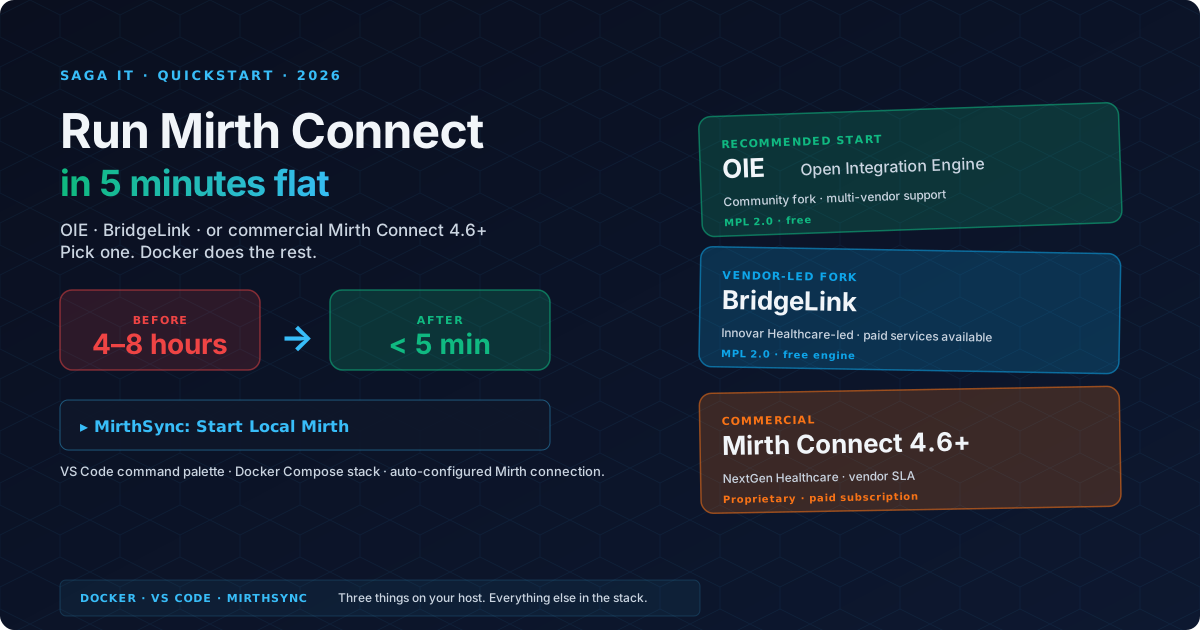
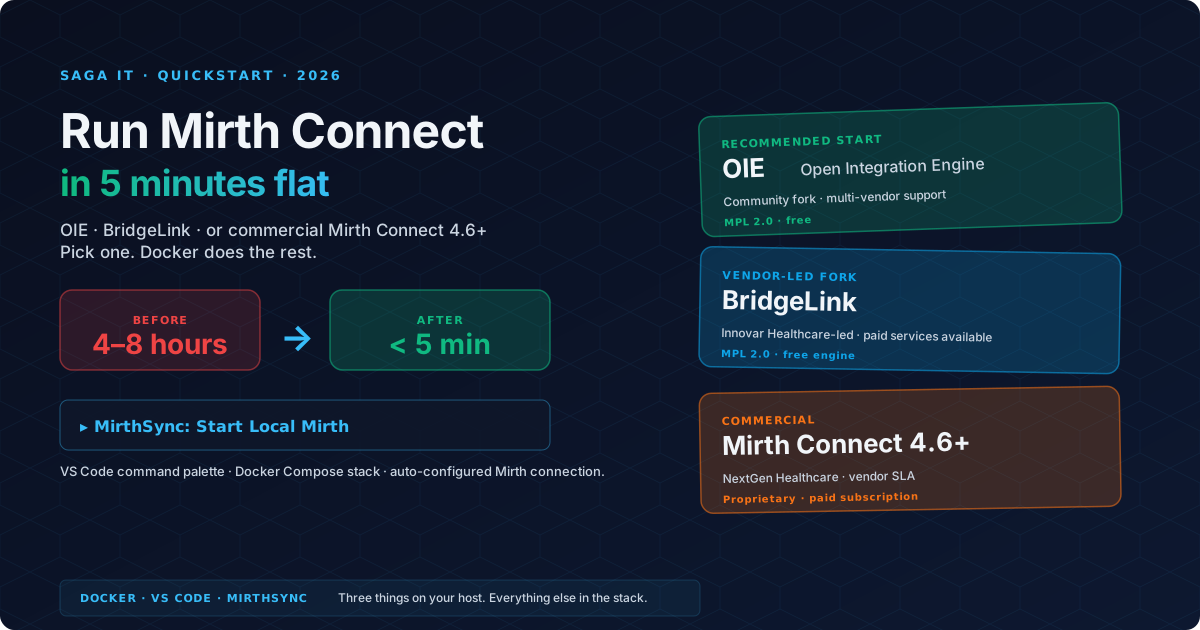
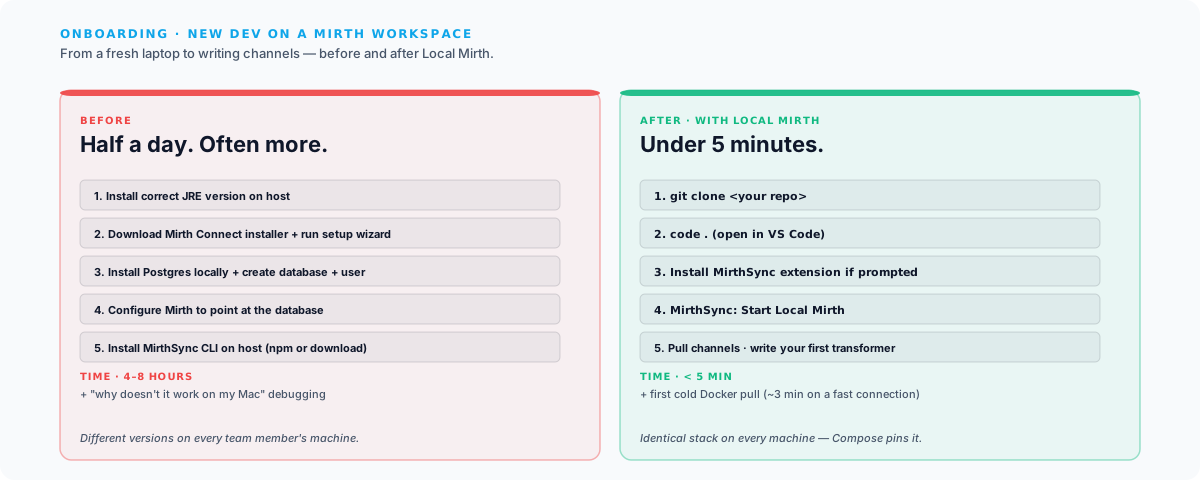
The traditional way to install Mirth Connect (download the installer, set up Java, configure Postgres, create an admin user, install MirthSync) takes most engineers half a day on a fresh laptop. We built a faster path.
This post is the 2026 quickstart for getting Mirth Connect (or its open-source forks, OIE and BridgeLink) running on your machine. It covers the five-minute Docker path that we recommend for new evaluations, plus the traditional installer path for teams who need an unmanaged install.
TL;DR
If you have VS Code and Docker installed, the fastest path is:
- Install the MirthSync for VS Code extension.
- Open the command palette (
Ctrl+Shift+P/Cmd+Shift+P). - Run
MirthSync: Start Local Mirth. - Wait ~3 minutes for the first Docker pull.
- Open the Mirth Administrator with the URL the extension shows you.
That’s it. You’re running Open Integration Engine (with Saga plugins preinstalled) plus Postgres plus the MirthSync CLI, all in a self-contained Docker Compose stack scaffolded into your workspace. The traditional installer path is below if you’d rather do it manually.
Pick a Platform
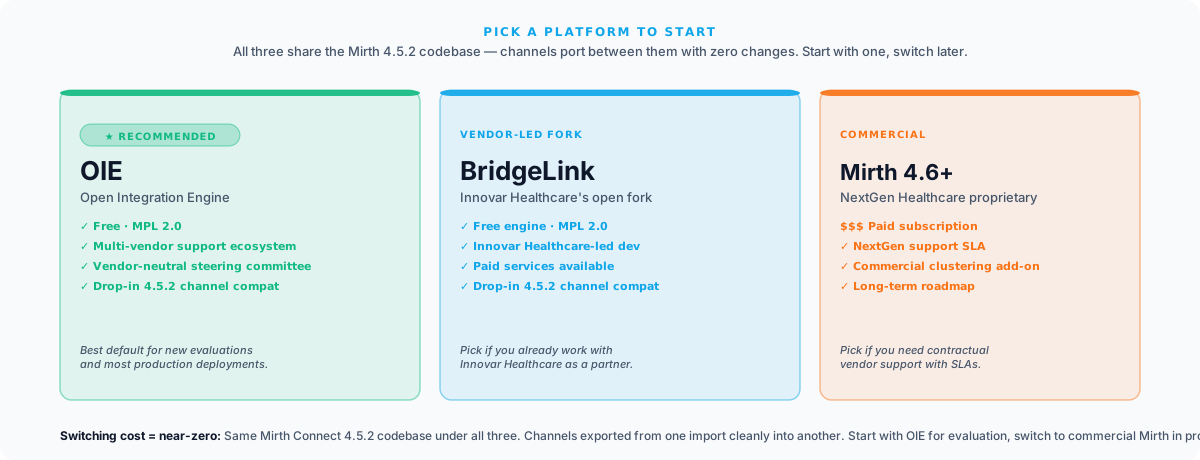
Mirth Connect 4.5.2 was the last open-source release before NextGen Healthcare moved Mirth to a commercial license in March 2025. You have three platforms to choose from in 2026:
- OIE (Open Integration Engine), now formally Eclipse Open Integration Engine: community fork of Mirth Connect 4.5.2 under MPL 2.0. An Eclipse Foundation project since September 2026, with multi-vendor committers. Free; the recommended starting point for new evaluations.
- BridgeLink: Another MPL 2.0 fork of Mirth Connect, led by Innovar Healthcare. Free engine; paid services available from Innovar Healthcare.
- Commercial Mirth Connect 4.6+: NextGen Healthcare’s paid commercial line, the continuation of the original product under a paid subscription.
If you’re just evaluating, start with OIE: same API surface as Mirth Connect, MirthSync works identically across all three, and you can switch later without re-writing channels. For a deeper comparison see our OIE vs BridgeLink vs Commercial Mirth Connect post.
The 5-Minute Path: Local Mirth via VS Code
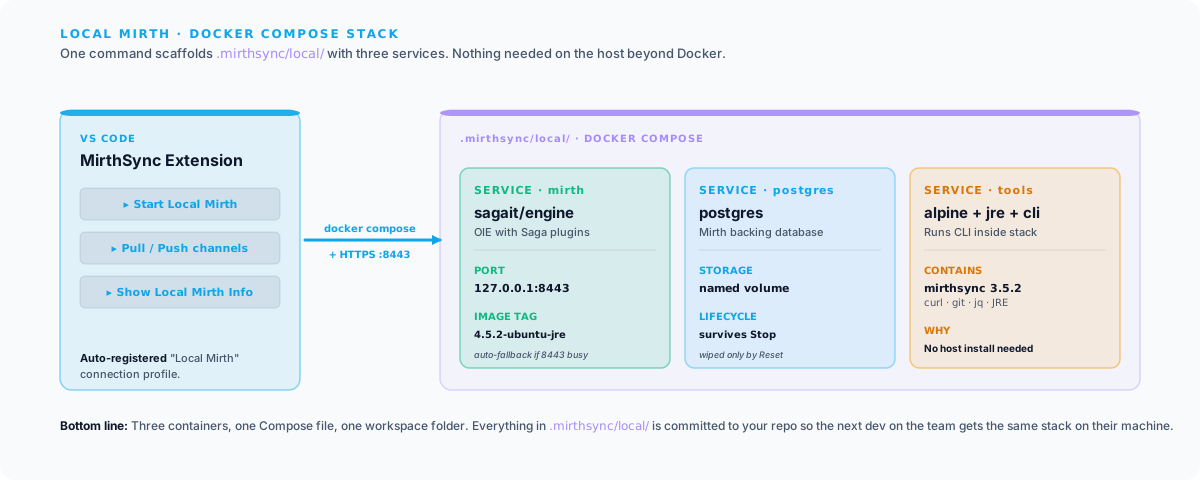
The MirthSync for VS Code extension ships a feature called Local Mirth: a one-command Docker Compose stack that spins up a throwaway Mirth/OIE plus Postgres plus a tools container inside your workspace. Nothing installed on the host beyond Docker; no Java, no Postgres, no installer wizard. The stack pulls the Open Integration Engine Docker image, which that page documents tag by tag if you would rather run it without the extension.
Prerequisites
You need exactly two things:
- VS Code (1.85.0 or later)
- Docker Desktop (any recent version) or Docker Engine on Linux
If both are installed, skip ahead. Both are free and have first-class installers for Windows, Mac, and Linux.
Step 1: Install the MirthSync extension
In VS Code, open the Extensions sidebar (Ctrl+Shift+X / Cmd+Shift+X), search for MirthSync, and install the one published by SagaITLLC. The MirthSync icon appears in your activity bar.
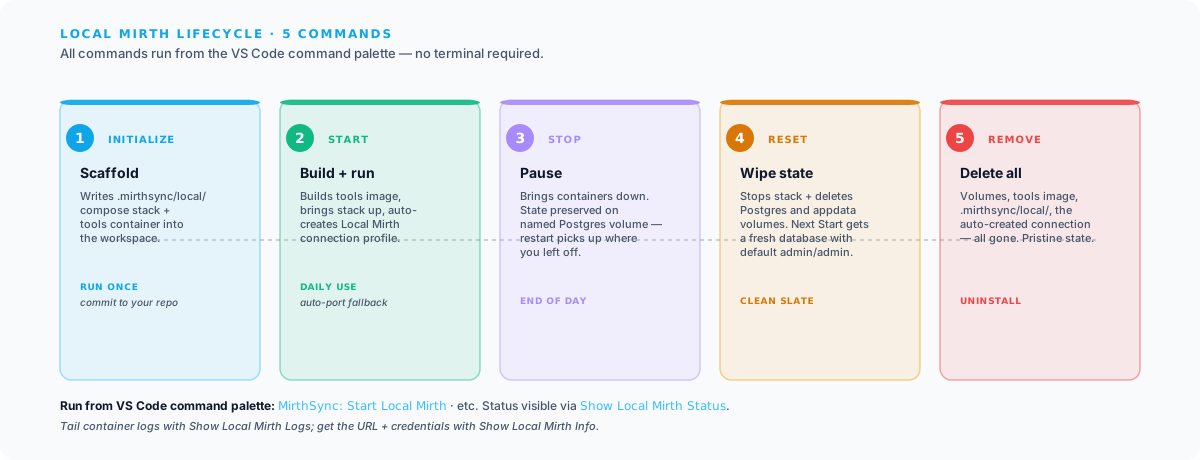
Step 2: Initialize the Local Mirth stack
Open an empty folder in VS Code (or your existing channel workspace). Run the command palette (Ctrl+Shift+P / Cmd+Shift+P) and execute:
MirthSync: Initialize Local MirthThe extension scaffolds a .mirthsync/local/ directory into your workspace containing:
compose.yml: the Docker Compose definition for the three-service stackDockerfile.tools: the recipe for the tools container (Alpine + JRE + MirthSync CLI).env: environment variables (port assignments, image tags)
Commit .mirthsync/local/ to your repo if you want every developer on the team to get the same stack. Or .gitignore it if you’d rather each developer initialize their own.
Step 3: Start the stack
MirthSync: Start Local MirthThe extension builds the tools image, brings the stack up, and auto-creates a Local Mirth connection profile in the Connections tree view. First start takes ~3 minutes (Docker pulls the ~600 MB Mirth + Postgres images). Subsequent starts take ~10 seconds.
Port already in use? If 8443 is occupied (common if you have another Mirth running, or if 8443 is blocked by another service), the extension detects the conflict, suggests an alternate port, and persists the choice in .mirthsync/local/.env for next time.
Step 4: Connect to the Administrator
Run:
MirthSync: Show Local Mirth InfoThe extension shows you:
- The URL (e.g.,
https://127.0.0.1:8443) - Default credentials (
admin/admin, you’ll be prompted to change on first login) - The path to
.mirthsync/local/for file-level access
Mirth Connect Administrator is a Java application. Install a launcher on your host:
- Ballista: community launcher used with OIE. Needs JRE 8+ on the host.
- NextGen MCAL: the legacy NextGen Mirth Connect Administrator Launcher. Bundles its own JRE.
Point either launcher at the URL Show Local Mirth Info gave you. Log in with admin / admin. You’re in.
Step 5: Stop, reset, or remove when you’re done
Four more lifecycle commands round out Local Mirth:
MirthSync: Stop Local Mirth # containers down, state preservedMirthSync: Reset Local Mirth # wipe Postgres + appdata, fresh state next startMirthSync: Remove Local Mirth # delete everything: volumes, images, .mirthsync/local/MirthSync: Show Local Mirth Logs # tail Mirth logs in the MirthSync output channelFor the full command + settings reference, troubleshooting (port conflicts, image tag changes, additional ports), and architecture deep-dive, see /docs/mirthsync/vscode/local-mirth.
The Traditional Path: Direct Installer
If you don’t want VS Code or Docker in the loop (maybe you’re installing on a production-shaped Linux server, or you’re a Java developer who’d rather manage the JVM directly), here’s the manual install path.
What you’ll install
| Component | Why | How |
|---|---|---|
| JRE 11+ | Mirth + Administrator both run on the JVM | OpenJDK or Temurin from your package manager |
| Mirth installer or OIE / BridgeLink release | The engine itself | See platform-specific links below |
| Postgres 13+ | Mirth’s default backing database (Derby is bundled but not production-grade) | Postgres.app on Mac; apt install postgresql on Linux; installer on Windows |
| MirthSync CLI (optional) | Version-control your channels in Git | npm install -g @saga-it/mirthsync |
Where to download each platform
- OIE: github.com/OpenIntegrationEngine/engine/releases, direct downloads, MPL 2.0
- BridgeLink: github.com/Innovar-Healthcare/BridgeLink, Innovar Healthcare’s fork, MPL 2.0
- Commercial Mirth Connect 4.6+: nextgen.com/…/mirth-connect-downloads, license required from NextGen
- Mirth Connect 4.5.2 (last open-source release): github.com/nextgenhealthcare/connect/releases, pinned at 4.5.2; later versions require a NextGen license
Install on Windows
- Install Temurin JRE 11+ from
adoptium.net. - Install Postgres 13+ from
postgresql.org(or run it in Docker). - Download the installer for your chosen platform (links above). Run it.
- Configure Mirth to point at your Postgres database during the install wizard (rather than the bundled Derby).
- Start Mirth from the Start menu. Connect via the Administrator Launcher.
Install on macOS
brew install --cask temurinbrew install postgresql@15 && brew services start postgresql@15- Download the macOS installer for your platform. Run it (you may need to right-click → Open to bypass Gatekeeper, since neither OIE nor BridgeLink builds are notarized by Apple).
- Configure the database connection during install.
- Launch Mirth from
/Applications/.
Install on Linux
# Ubuntu/Debiansudo apt updatesudo apt install -y openjdk-17-jre postgresql
# Download + extract (OIE example — substitute the URL for your chosen platform)wget https://github.com/OpenIntegrationEngine/engine/releases/download/<VERSION>/oie-<VERSION>.tar.gztar -xzf oie-<VERSION>.tar.gzcd oie-<VERSION>
# Configure database in conf/mirth.properties (point at Postgres)# Then start./mcserver
Why this takes longer
Versions drift across team members’ machines, the installer wizard has 9+ screens, Postgres setup needs DBA-level decisions (port, listen address, role), Java version conflicts are common, and the Administrator Launcher itself has its own install on top.
This is exactly the problem the Docker-based Local Mirth path was built to skip.
First Channel: Make Mirth Do Something
You have Mirth running. Now make it do something useful so you know the install worked.
The fastest end-to-end test: read an HL7 v2 message from a file and write it back out as JSON.
- In the Administrator, click Channels → New Channel.
- Source tab → set the connector to File Reader. Point it at a folder (create one if needed, e.g.,
/tmp/mirth-in/). - Destinations tab → set the connector to File Writer. Point it at a different folder (
/tmp/mirth-out/). - On the destination (a File Writer), add a transformer step → JavaScript → paste:
Then set the File Writer’s Template tovar out = JSON.stringify({messageType: msg['MSH']['MSH.9']['MSH.9.1'].toString(),patient: {mrn: msg['PID']['PID.3']['PID.3.1'].toString(),name: msg['PID']['PID.5']['PID.5.1'].toString() + ', ' +msg['PID']['PID.5']['PID.5.2'].toString()}}, null, 2);channelMap.put('out', out);
${out}so the JSON you built is what gets written. - Deploy the channel. Drop a sample ADT message into
/tmp/mirth-in/. Check/tmp/mirth-out/.
If a JSON file appears in the output folder within a second, you have a working install + a working channel. You can extend that transformer to do anything Mirth can do.
For testing HL7 v2 messages without finding sample data, our free HL7 Workbench parses and lets you tweak messages in the browser, useful for crafting test fixtures.
Common Issues
Port 8443 already in use. Either stop the conflicting service, or use Local Mirth’s auto-fallback (it detects the conflict and picks an alternate port). For the traditional install, edit conf/mirth.properties and change https.port.
SSL handshake failed from the Administrator. Mirth ships with a self-signed certificate. The Administrator caches the previous server’s cert per-launcher; clear the cache or accept the new cert on first connect.
Could not connect to database. Postgres needs to be running, listening on the configured port, and accepting connections from localhost. Check pg_hba.conf for the right authentication method (typically md5 for password auth in dev environments).
Mirth dashboard says channels are deployed but messages aren’t flowing. Most often a permissions issue on the source folder (File Reader can’t read it) or a destination connection failure (downstream system isn’t running). Check the dashboard’s per-channel error count and the channel’s logs.
Java version mismatch on the traditional install. Mirth 4.5.2 needs JRE 11+. If you have multiple JREs installed, the Mirth installer or launcher may pick the wrong one. Set JAVA_HOME explicitly.
Where to Go Next
You have Mirth running. Some natural next steps:
- Build the right channel patterns from day one: our Mirth Connect Best Practices for 2026 (Also Applies to OIE & BridgeLink) post covers channel naming, queuing, error handling, retention, monitoring, and security.
- Get channels into Git for CI/CD: our Getting Started with MirthSync and MirthSync in CI/CD pipelines posts cover the version-control workflow.
- Edit channels in VS Code: the MirthSync VS Code extension (the same extension that gave you Local Mirth) brings IntelliSense, diagnostics, and a Java debugger to channel development.
- Pick a long-term platform: the OIE vs BridgeLink vs Commercial Mirth Connect post covers what you need to decide for production.
- Operate, share, and monitor from the browser: our OpenShare integration platform runs on top of any Mirth-lineage engine to administer your servers, publish channels and exchange data with partner organizations, and monitor your whole fleet from one console.
If you need help architecting integrations, migrating from one platform to another, or running a production Mirth/OIE/BridgeLink deployment, our Mirth Connect consulting and Open Integration Engine practices can help.