User Guide
This guide covers the day-to-day features of the MirthSync VS Code Extension. If you haven’t installed it yet, start with the installation guide.
Connections
Section titled “Connections”The extension supports multiple Mirth server connections with secure credential storage. Switch between dev, staging, and production servers without re-entering credentials.
Adding a Connection
Section titled “Adding a Connection”- Open the Command Palette (
Ctrl+Shift+P) - Run
MirthSync: Add Connection - Enter a name, server URL, username, and password
- The connection appears in the Mirth Connections tree view
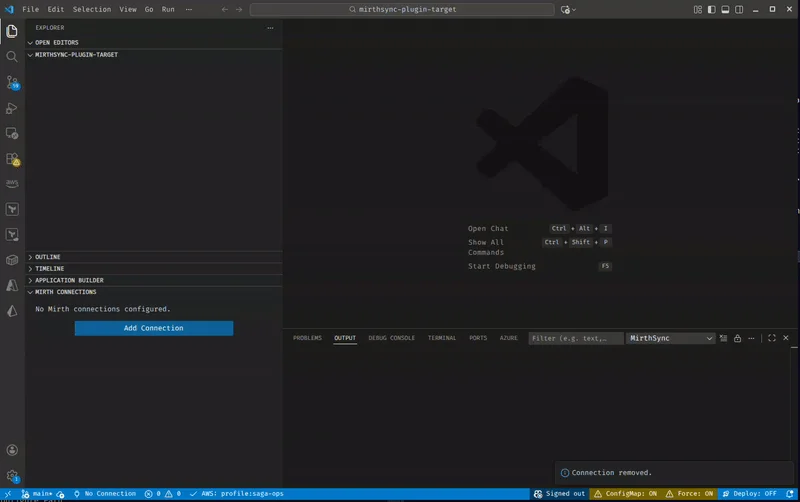
Managing Connections
Section titled “Managing Connections”Right-click any connection in the Mirth Connections tree view for these options:
| Action | Description |
|---|---|
| Test Connection | Verify the server is reachable and credentials are valid |
| Connect | Establish an active session |
| Disconnect | Close the session |
| Set as Active | Designate as the default connection for sync operations |
| Remove | Delete the connection profile |
Secure Credentials
Section titled “Secure Credentials”Passwords are stored via the VS Code Secrets API, which uses your operating system’s native credential store:
- macOS: Keychain
- Windows: Credential Manager
- Linux: libsecret / GNOME Keyring
Credentials never appear in settings files, .vscode/ directories, or version control.
Tree Views
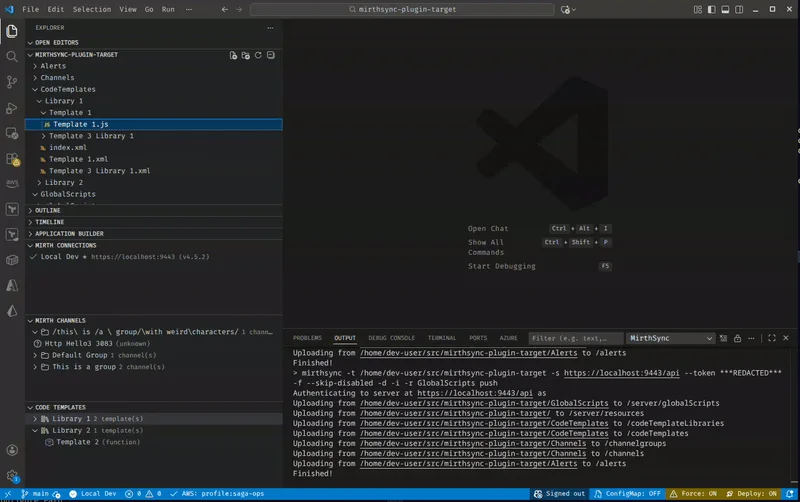
Section titled “Tree Views”The extension adds three tree views to the VS Code sidebar, giving you a live hierarchical view of your Mirth server.
Mirth Connections
Section titled “Mirth Connections”Lists all configured server connections. Icons indicate connection status (connected, disconnected, active). Right-click for connection management options.
Mirth Channels
Section titled “Mirth Channels”Displays channel groups and individual channels from the active connection. This mirrors the channel structure on your Mirth server.
Right-click operations:
- Pull: Download a channel, channel group, or all channels to your workspace
- Push: Upload local changes back to the Mirth server
- Deploy Channel: Activate a channel on the server
- Undeploy Channel: Deactivate a channel
Code Templates
Section titled “Code Templates”Browse code template libraries on the active connection. Right-click to pull or push individual libraries.
Sync Operations
Section titled “Sync Operations”Sync is the core workflow: pulling configurations from Mirth to your workspace, editing locally, and pushing changes back.
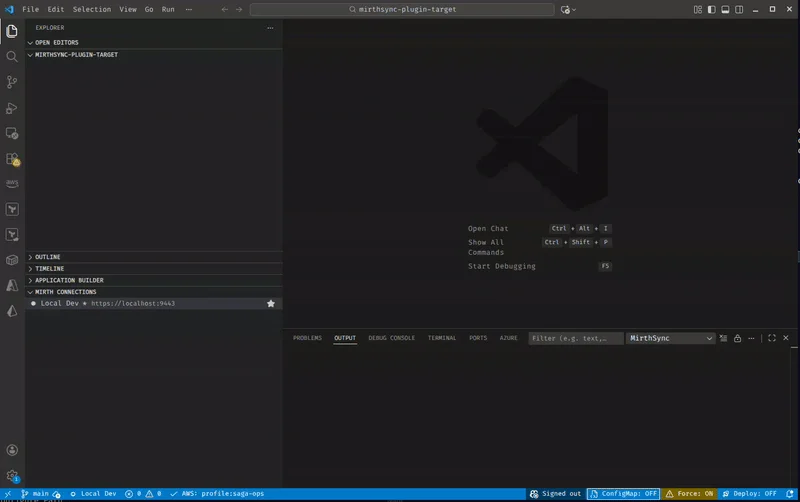
Pull (Server → Local)
Section titled “Pull (Server → Local)”Download configurations from the Mirth server to your VS Code workspace.
| Method | Scope |
|---|---|
Command Palette → MirthSync: Pull All | All channels, templates, global scripts |
| Tree view → Right-click channel group → Pull | Single channel group |
| Tree view → Right-click channel → Pull | Single channel |
| Tree view → Right-click template library → Pull | Single code template library |
File Explorer → Right-click Channels/ folder → Pull | All channels |
File Explorer → Right-click CodeTemplates/ folder → Pull | All code templates |
File Explorer → Right-click GlobalScripts/ folder → Pull | Global scripts |
Push (Local → Server)
Section titled “Push (Local → Server)”Upload local changes back to the Mirth server.
| Method | Scope |
|---|---|
Command Palette → MirthSync: Push All | All local changes |
| Tree view → Right-click channel group → Push | Single channel group |
| Tree view → Right-click channel → Push | Single channel |
| File Explorer → Right-click folder → Push | Folder contents |
Sync Options
Section titled “Sync Options”Three toggles control sync behavior. Set them via the status bar or Command Palette:
ConfigMap Inclusion (MirthSync: Toggle ConfigurationMap Inclusion)
: Include the Mirth ConfigurationMap when syncing. Disabled by default to avoid overwriting environment-specific settings.
Force Sync (MirthSync: Toggle Force Sync)
: Overwrite server contents without conflict checking. Use with caution. This bypasses any remote changes. When promptForForce is enabled (default), the extension will ask before forcing.
Deploy After Push (MirthSync: Toggle Deploy After Push)
: Automatically deploy channels on the server after a push completes. Useful for dev environments; disable for production.
Force Sync
Force sync overwrites the server state with your local files. Always verify your changes with MirthSync: Git Diff before force-pushing, especially to shared or production servers.
Language Features
Section titled “Language Features”The extension provides rich language support for Mirth Connect JavaScript APIs, including autocomplete, hover documentation, navigation, and diagnostics, so you get a full IDE experience when editing transformer, filter, and code template logic.
IntelliSense & Autocomplete
Section titled “IntelliSense & Autocomplete”Autocomplete suggestions appear as you type in Mirth JavaScript files. Triggers fire on . and $ characters.
Mirth globals:
msg, connectorMessage, router, alerts, logger, response, destinationSet
Map shortcuts:
$c, $g, $gc, $s, $d, $r, $co
Utility classes:
FileUtil, DateUtil, DatabaseConnectionFactory, SMTPConnectionFactory, ResponseFactory, SerializerFactory, ChannelUtil, XmlUtil, AttachmentUtil
Java interop:
Access Java classes via the Packages namespace (e.g., Packages.java.io.File).
Suggestions appear in JavaScript blocks within Mirth channel XML files, adapting to the current context.
Hover Documentation
Section titled “Hover Documentation”Hover over any Mirth identifier to see inline documentation, including method signatures, parameter types, and descriptions.
Go to Definition
Section titled “Go to Definition”Press F12 or Ctrl+Click to jump to function and variable definitions across Mirth files.
Find All References
Section titled “Find All References”Press Shift+F12 to find all usages of a symbol across the workspace.
Rename Symbol
Section titled “Rename Symbol”Press F2 to rename a symbol across files. Includes validation to prevent renaming non-Mirth identifiers.
Document Symbols
Section titled “Document Symbols”The Outline view (Ctrl+Shift+O) shows functions, variables, and code blocks in Mirth scripts for quick navigation.
Javadocs Configuration
Section titled “Javadocs Configuration”For the most comprehensive IntelliSense, point the extension to your Mirth server’s Javadocs:
{ "mirthsync.javadocsUrl": "https://your-mirth-server:8443/javadocs"}This enables the extension to generate API completions from your specific Mirth version.
Diagnostics & Linting
Section titled “Diagnostics & Linting”The extension provides real-time code analysis with 14 built-in rules. Diagnostics appear as you type. No configuration or external tools required.
Security Rules
Section titled “Security Rules”| Rule | Severity | What It Catches |
|---|---|---|
mirth-sql-injection | Warning | String concatenation in executeQuery/executeUpdate calls using map values |
mirth-eval | Warning | Usage of JavaScript eval function, which can lead to code injection |
mirth-hardcoded-password | Warning | Hardcoded credentials assigned to password, secret, apikey, or similar variables |
mirth-file-path-traversal | Warning | User-provided map values passed directly to new File() operations |
Correctness Rules
Section titled “Correctness Rules”| Rule | Severity | What It Catches |
|---|---|---|
mirth-msg-immutable | Error | Attempting to modify the immutable msg object. Use connectorMessage.setRawData() instead |
mirth-deprecated-co | Warning | Deprecated $co shortcut. Use connectorMap.get() or $c() instead |
mirth-deprecated-serializer | Warning | Deprecated SerializerFactory. Use the serializer property on the message instead |
mirth-filter-return | Hint | Filter scripts that don’t explicitly return true or false |
Best Practice Rules
Section titled “Best Practice Rules”| Rule | Severity | What It Catches |
|---|---|---|
mirth-map-null-check | Hint | Map .get() values used without null checking |
mirth-potential-infinite-loop | Warning | while(true) loops without a visible break condition |
mirth-logger-inefficient | Hint | String concatenation in logger calls. Check logger.isDebugEnabled() first |
mirth-fileutil-no-try | Hint | FileUtil operations without try-catch error handling |
mirth-xmlutil-performance | Hint | XMLUtil.prettyPrint on msg.getRawData(), which can be slow for large messages |
mirth-undefined-global | Hint | Map objects (channelMap, globalMap, etc.) referenced without calling .get() or .put() |
Snippets
Section titled “Snippets”The extension includes 28 code snippets for common Mirth patterns. Type a prefix and press Tab to expand.
Map Operations
Section titled “Map Operations”| Prefix | Name | Expands To |
|---|---|---|
cmput | Channel Map Put | channelMap.put('key', value) |
cmget | Channel Map Get | $c('key') |
gmput | Global Map Put | globalMap.put('key', value) |
gmget | Global Map Get | $g('key') |
gcmput | Global Channel Map Put | globalChannelMap.put('key', value) |
gcmget | Global Channel Map Get | $gc('key') |
Logging
Section titled “Logging”| Prefix | Name | Expands To |
|---|---|---|
logi | Logger Info | logger.info('message') |
logd | Logger Debug | logger.debug('message') |
loge | Logger Error | logger.error('message') |
logw | Logger Warn | logger.warn('message') |
Data Processing
Section titled “Data Processing”| Prefix | Name | Expands To |
|---|---|---|
xmlparse | XML Parse | E4X XML parsing with element access |
jsonparse | JSON Parse | JSON.parse() with property access |
jsonstringify | JSON Stringify | JSON.stringify() |
hl7seg | HL7 Segment Access | msg['PID']['PID.5']['PID.5.1'].toString() |
getraw | Get Raw Data | msg.getRawData() |
settrans | Set Transformed Data | connectorMessage.setTransformedData() |
Database & HTTP
Section titled “Database & HTTP”| Prefix | Name | Expands To |
|---|---|---|
dbquery | Database Query | Full DatabaseConnectionFactory pattern with executeCachedQuery and finally close |
httpreq | HTTP Request | Java URL/URLConnection HTTP request with response reading |
sendemail | SMTP Send Email | SMTPConnectionFactory pattern |
File I/O & Dates
Section titled “File I/O & Dates”| Prefix | Name | Expands To |
|---|---|---|
fileread | File Read | FileUtil.read(path) |
filewrite | File Write | FileUtil.write(path, content, append) |
dateformat | Date Format | DateUtil.getCurrentDate(format) |
dateconvert | Date Convert | DateUtil.convertDate(fromFormat, toFormat, dateString) |
Control Flow & Operations
Section titled “Control Flow & Operations”| Prefix | Name | Expands To |
|---|---|---|
trycatch | Try Catch | Try-catch block with logger.error |
foreach | For Each Loop | E4X-style for each (var item in collection) |
route | Route Message | router.routeMessage(channelName, data) |
alert | Send Alert | alerts.sendAlert(message) |
response | Create Response | ResponseFactory.getSuccess/Error/Sent/Queued/Filtered() |
msgid | Message ID | msg.getMessageId() |
Debugger
Section titled “Debugger”The extension provides debug launch configurations for attaching to Mirth Connect’s Java debug port (JDWP). This lets you set breakpoints, inspect variables, and step through channel logic.
Prerequisites
Section titled “Prerequisites”- Java Extension Pack for VS Code (provides the Java debug adapter)
- Mirth Connect started with JDWP remote debugging enabled on port 5005
Pre-Built Launch Configurations
Section titled “Pre-Built Launch Configurations”The extension provides three debug configurations via the Command Palette (Run and Debug → Add Configuration):
| Configuration | Target | Details |
|---|---|---|
| Attach to Mirth (Local) | localhost:5005 | For local Mirth installations |
| Attach to Mirth (Dev Container) | mirth:5005 | For Docker-based development environments |
| Attach to Mirth (Remote) | Prompted at launch | Enter hostname and port via input variables |
Port Connectivity Check
Section titled “Port Connectivity Check”Before attaching, the extension validates that the JDWP debug port is reachable. If the port is closed or unreachable, you’ll get a specific error message indicating whether the issue is a connection refusal, timeout, or hostname resolution failure.
Status Bar
Section titled “Status Bar”The VS Code status bar (bottom of the window) shows MirthSync state at a glance. Each item is clickable to toggle or change its value.
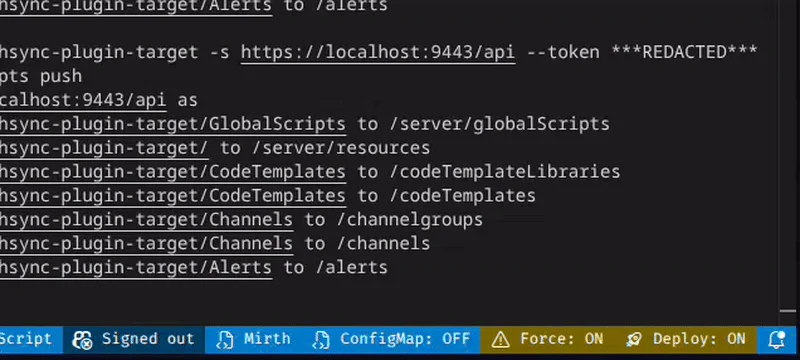
| Indicator | Shows | Click Action |
|---|---|---|
| Connection | Active server name and status | Open connection list |
| ConfigMap | Whether ConfigMap is included in sync | Toggle on/off |
| Force | Whether force sync is enabled | Toggle on/off |
| Deploy | Whether deploy-after-push is active | Toggle on/off |
File Explorer Integration
Section titled “File Explorer Integration”Beyond tree views and the Command Palette, you can sync directly from the VS Code File Explorer.
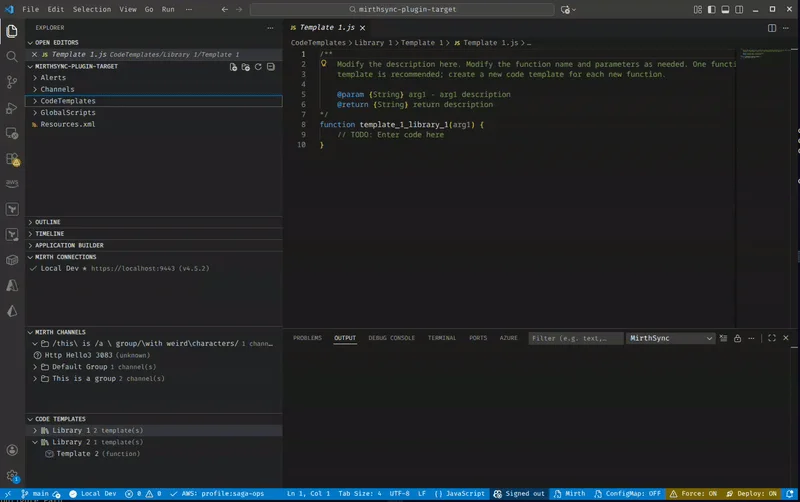
Right-click on these folders in your workspace for sync options:
Channels/: Pull or push all channelsCodeTemplates/: Pull or push all code templatesGlobalScripts/: Pull or push global scriptsAlerts/: Pull or push alert configurationsConfigurationMap.xml: Pull or push the configuration map (individual file)Resources.xml: Pull or push resource definitions (individual file)
This is convenient when you’ve made edits in the file explorer and want to push specific folders without syncing everything.
Git Integration
Section titled “Git Integration”The extension includes built-in Git commands for reviewing changes before pushing to the server.
| Command | Description |
|---|---|
MirthSync: Git Status | Show modified, added, and deleted files in the workspace |
MirthSync: Git Diff | Display a diff of all changes since the last commit |
These complement VS Code’s built-in Source Control panel. Use them to verify your changes before pushing to Mirth.
Recommended Workflow
Section titled “Recommended Workflow”- Pull configurations from the server
- Edit channels, templates, or scripts in VS Code
- Git Status / Diff to review what changed
- Commit changes using VS Code’s Source Control
- Push changes back to the Mirth server
- Deploy channels if needed
Server Operations
Section titled “Server Operations”Manage channel deployment state directly from VS Code:
| Command | Description |
|---|---|
MirthSync: Deploy Channel | Activate a channel on the connected server |
MirthSync: Undeploy Channel | Deactivate a channel |
MirthSync: Import Channel | Import a channel from a local file to the server |
MirthSync: Export Channel | Export a channel from the server to a local file |
MirthSync: Server Status | Display the connected server’s health and version info |