Tutorials
Tutorials
Section titled “Tutorials”This page provides step-by-step tutorials for common workflows using the MirthSync Plugin. Each tutorial includes screenshots and detailed instructions to help you master version control for your Mirth Connect environment.
Tutorial 1: First-Time Setup
Section titled “Tutorial 1: First-Time Setup”Learn how to set up the MirthSync Plugin for the first time and initialize your repository.
Prerequisites
Section titled “Prerequisites”- MirthSync Plugin installed (includes embedded Git - no separate installation needed)
- Administrator access to Mirth Connect or Open Integration Engine
1. Open the MirthSync Panel
Section titled “1. Open the MirthSync Panel”- Launch Mirth Connect Administrator
- Log in with your credentials
- Locate the MirthSync panel in the left sidebar
- Click to open the panel
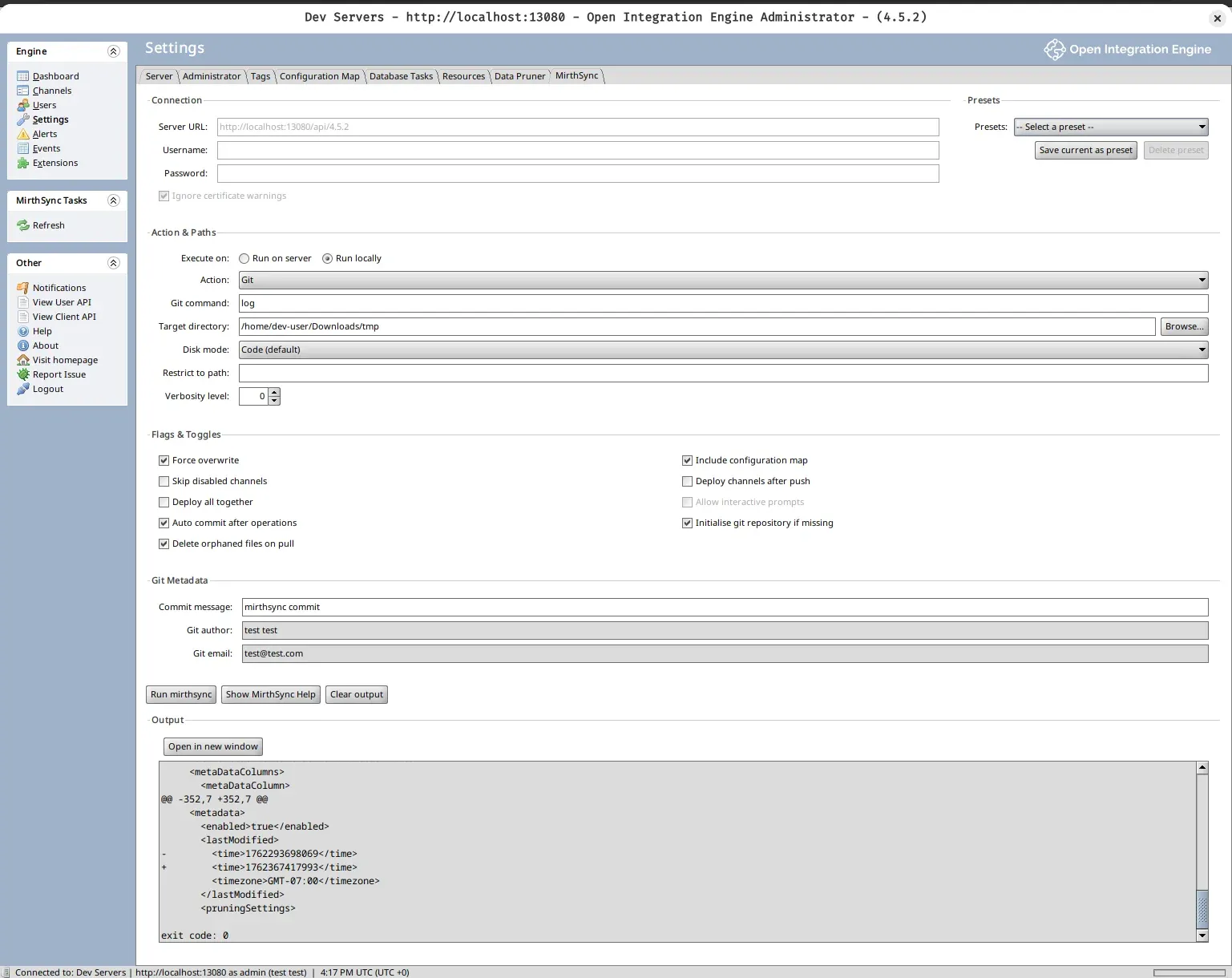
2. Configure Git Settings
Section titled “2. Configure Git Settings”- Click the Settings button (gear icon)
- Enter your Git user information:
- Name: Your full name
- Email: Your email address
- Set the repository path (or accept the default)
- Click Save
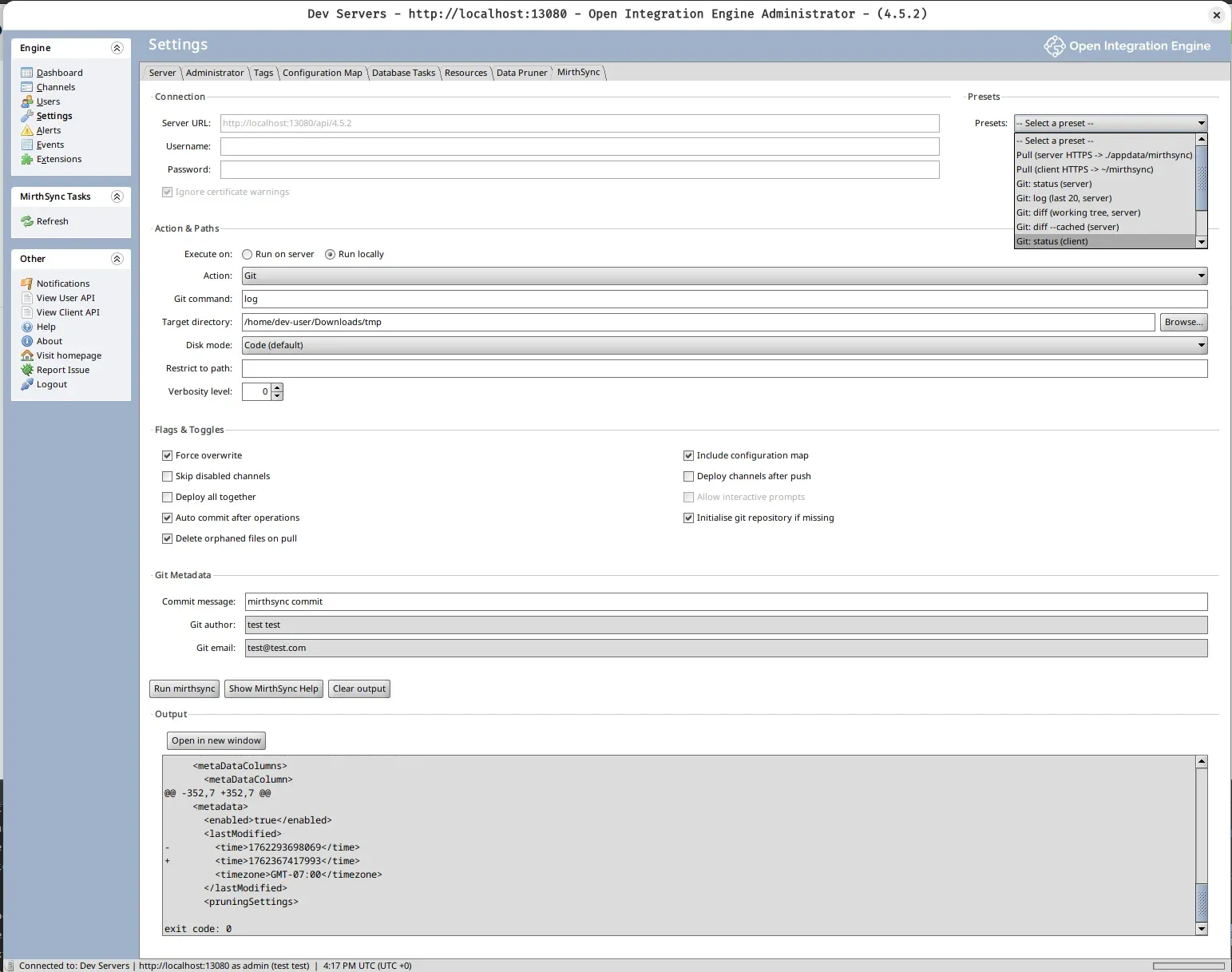
3. Initialize the Repository
Section titled “3. Initialize the Repository”- Click the Initialize Repository button
- Choose initialization options:
- Create new repository
- Connect to existing repository
- If creating new:
- Confirm the repository path
- Set the default branch name (e.g., “main”)
- Click Initialize
4. Initial Commit
Section titled “4. Initial Commit”- The plugin will detect all existing Mirth Connect configuration
- Review the files to be committed in the File Changes View
- Enter a commit message: “Initial commit - Mirth Connect configuration”
- Click Commit
Congratulations! Your repository is now set up and tracking your Mirth Connect configuration.
Tutorial 2: Committing Channel Changes
Section titled “Tutorial 2: Committing Channel Changes”Learn how to commit changes to channels using the MirthSync Plugin.
Scenario
Section titled “Scenario”You’ve created a new HL7 receiver channel and want to commit it to version control.
1. Make Changes in Mirth Connect
Section titled “1. Make Changes in Mirth Connect”- Create or modify a channel in Mirth Connect
- Save the channel
- The MirthSync panel will automatically detect the changes
2. Review Changes
Section titled “2. Review Changes”- Open the MirthSync panel
- Look at the File Changes View
- You’ll see the new/modified channel file listed
- Click on the file to view the diff (what changed)
3. Stage the Changes
Section titled “3. Stage the Changes”- Check the box next to the changed file(s) to stage them
- Or click Stage All to stage all changes
- Staged files are ready to be committed
4. Write a Commit Message
Section titled “4. Write a Commit Message”-
In the Commit Message field, write a descriptive message:
Add HL7 receiver channel for Lab Results- Configured to receive HL7 v2.5 messages on port 6661- Added transformers for lab data normalization- Configured destination for database storage -
Follow commit message best practices:
- First line: brief summary (50 chars or less)
- Blank line
- Additional details explaining what and why
5. Commit the Changes
Section titled “5. Commit the Changes”- Click the Commit button
- Wait for confirmation
- The commit appears in the History Viewer
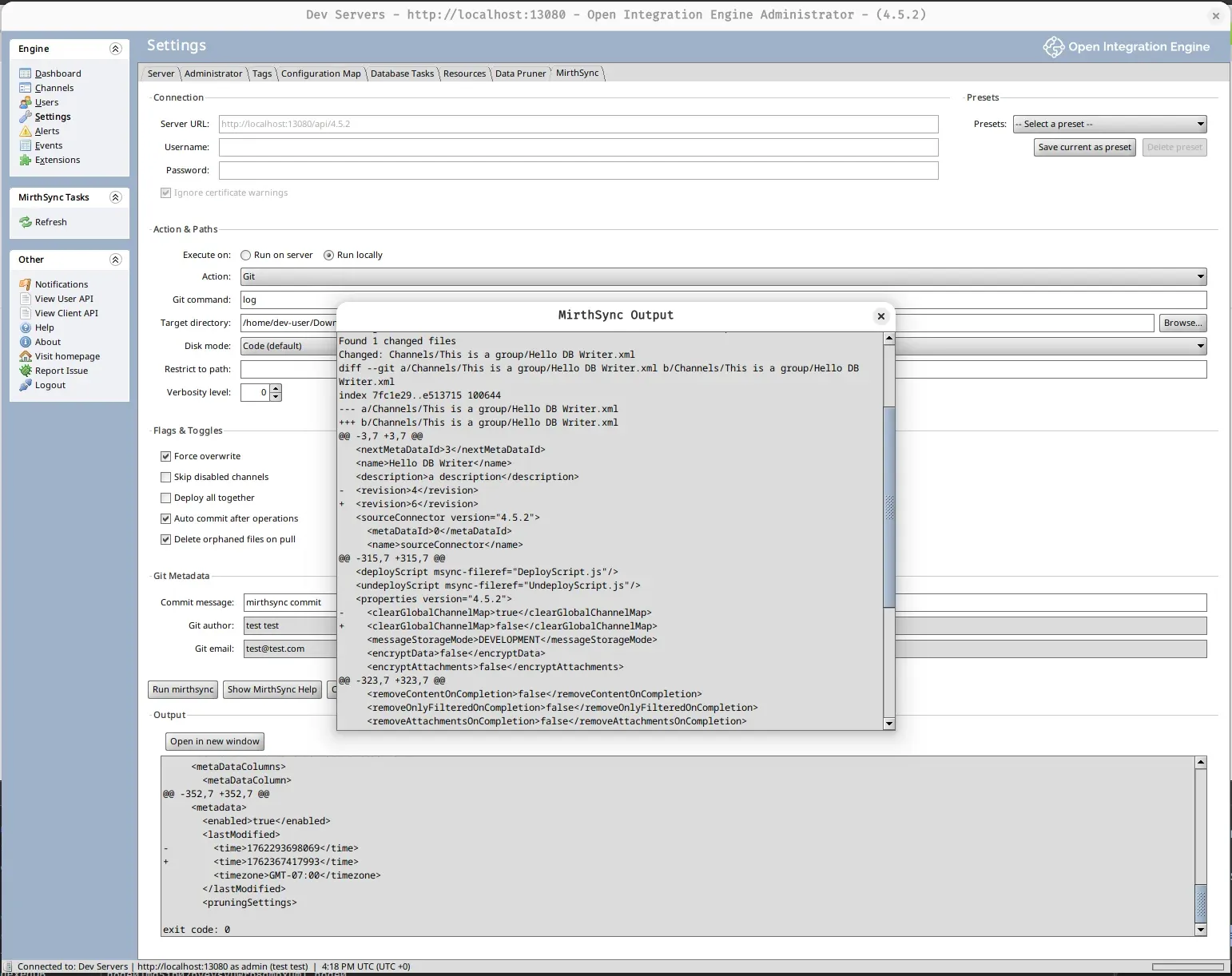
Tutorial 3: Pushing to a Remote Repository
Section titled “Tutorial 3: Pushing to a Remote Repository”Learn how to push your commits to a remote Git repository (GitHub, GitLab, Bitbucket, etc.).
Prerequisites
Section titled “Prerequisites”- Initialized local repository with commits
- Remote Git repository (GitHub, GitLab, etc.)
- Authentication configured (SSH keys or HTTPS credentials)
1. Add Remote Repository
Section titled “1. Add Remote Repository”- Open the MirthSync panel
- Click Settings → Remote Repository
- Click Add Remote
- Enter the remote details:
- Name: origin
- URL: Your repository URL (SSH or HTTPS)
- Example SSH:
git@github.com:yourorg/mirth-config.git - Example HTTPS:
https://github.com/yourorg/mirth-config.git
- Click Save
2. Configure Authentication
Section titled “2. Configure Authentication”For SSH:
- Ensure your SSH key is added to your Git hosting service
- Test connection: The plugin will verify SSH access
For HTTPS:
- You’ll be prompted for username and password when pushing
- Consider setting up credential caching for convenience
3. Push Commits
Section titled “3. Push Commits”- Click the Push button in the Quick Actions toolbar
- If this is the first push, you may need to:
- Set the upstream branch
- Confirm the push operation
- Enter credentials if using HTTPS
- Wait for the push to complete
4. Verify Remote Sync
Section titled “4. Verify Remote Sync”- Check the Repository Status section
- You should see “Up to date with origin/main”
- Visit your remote repository to verify the files were pushed
Tutorial 4: Pulling Changes from Remote
Section titled “Tutorial 4: Pulling Changes from Remote”Learn how to pull changes made by other team members.
Scenario
Section titled “Scenario”A team member has pushed changes to the remote repository, and you need to pull them into your local Mirth Connect instance.
1. Check Remote Status
Section titled “1. Check Remote Status”- Open the MirthSync panel
- Click the Refresh button
- The Repository Status shows “Behind origin/main by 3 commits”
2. Review Remote Changes (Optional)
Section titled “2. Review Remote Changes (Optional)”- Click View Remote Changes
- See what commits were made remotely
- Review the changes that will be pulled
3. Pull Changes
Section titled “3. Pull Changes”- Click the Pull button
- The plugin will:
- Fetch changes from remote
- Merge them into your local branch
- Update Mirth Connect configuration
- Wait for the operation to complete
4. Verify Changes in Mirth Connect
Section titled “4. Verify Changes in Mirth Connect”- Return to the Mirth Connect Administrator
- Refresh the channel list
- You should see the updated channels and configuration
- The MirthSync panel shows “Up to date with origin/main”
Tutorial 5: Resolving Merge Conflicts
Section titled “Tutorial 5: Resolving Merge Conflicts”Learn how to handle conflicts when your changes overlap with remote changes.
Scenario
Section titled “Scenario”You and a team member modified the same channel. When you try to pull, a merge conflict occurs.
1. Encounter Conflict
Section titled “1. Encounter Conflict”- Click Pull to get remote changes
- A conflict is detected
- The Repository Status shows “Conflicts: 1 file”
2. Open Conflict Resolution
Section titled “2. Open Conflict Resolution”- The Conflict Resolution panel opens automatically
- See the list of conflicted files
- Click on the conflicted file to view details
3. Review Conflicting Changes
Section titled “3. Review Conflicting Changes”- The diff view shows:
- Your changes (local)
- Their changes (remote)
- Conflict markers highlighting differences
- Review both sets of changes to understand the conflict
4. Resolve the Conflict
Section titled “4. Resolve the Conflict”Option A: Keep Your Version
- Click Keep Local Version
- Your changes will be preserved
Option B: Accept Their Version
- Click Accept Remote Version
- The remote changes will be used
Option C: Manual Resolution
- Click Edit Manually
- The file opens in an editor
- Combine changes as needed
- Remove conflict markers
- Save the file
5. Mark as Resolved
Section titled “5. Mark as Resolved”- After resolving, click Mark as Resolved
- The file moves from conflicted to staged
- Repeat for any additional conflicts
6. Complete the Merge
Section titled “6. Complete the Merge”- All conflicts are now resolved
- Enter a merge commit message
- Click Commit to complete the merge
- The merge is complete, and your repository is up to date
Tutorial 6: Working with Branches
Section titled “Tutorial 6: Working with Branches”Learn how to create and manage branches for feature development.
Scenario
Section titled “Scenario”You want to develop a new feature without affecting the main branch.
1. Create a New Branch
Section titled “1. Create a New Branch”- Open the MirthSync panel
- Click Branches → Create New Branch
- Enter branch details:
- Name:
feature/enhanced-logging - Base: main
- Name:
- Click Create and Switch
2. Make Changes on the Branch
Section titled “2. Make Changes on the Branch”- Develop your feature in Mirth Connect
- Commit changes to the feature branch
- The Repository Status shows “On branch feature/enhanced-logging”
3. Push the Feature Branch
Section titled “3. Push the Feature Branch”- Click Push
- Set upstream for the new branch if prompted
- Your feature branch is now on the remote repository
4. Merge Feature into Main
Section titled “4. Merge Feature into Main”When feature is complete:
- Switch back to the main branch:
- Click Branches → Switch
- Select “main”
- Click Merge → Select Branch
- Choose
feature/enhanced-logging - Click Merge
- Resolve any conflicts if necessary
- Push the updated main branch
5. Delete the Feature Branch (Optional)
Section titled “5. Delete the Feature Branch (Optional)”- After merging, you can delete the feature branch
- Click Branches → Delete
- Select
feature/enhanced-logging - Confirm deletion
Tutorial 7: Rolling Back Changes
Section titled “Tutorial 7: Rolling Back Changes”Learn how to revert to a previous version of your configuration.
Scenario
Section titled “Scenario”You need to undo recent changes and return to a previous stable state.
1. Open Commit History
Section titled “1. Open Commit History”- Open the MirthSync panel
- Click History to view all commits
- Find the commit you want to revert to
2. View Commit Details
Section titled “2. View Commit Details”- Click on the desired commit
- Review what changes were made
- Confirm this is the version you want
3. Revert to Previous Commit
Section titled “3. Revert to Previous Commit”Option A: Revert Specific Commit
- Right-click on the commit
- Select Revert This Commit
- A new commit is created that undoes the changes
- Your history is preserved
Option B: Reset to Commit
- Right-click on the commit
- Select Reset to This Commit
- Choose reset type:
- Soft: Keep changes in working directory
- Hard: Discard all changes (caution!)
- Confirm the reset
4. Update Mirth Connect
Section titled “4. Update Mirth Connect”- The plugin updates the Mirth Connect configuration
- Restart channels if necessary
- Verify the configuration is as expected
5. Push Changes (if needed)
Section titled “5. Push Changes (if needed)”- If you’re working with a remote repository
- You may need to force push (use with caution!)
- Better practice: Use revert instead of reset for shared branches