Saga’s HL7 developer workbench started as a tool for HL7® v2: open a message, see every segment and field named, and validate it against its v2 version. Version 2.0 puts FHIR® and C-CDA on the same bench. The workbench now converts HL7 v2 to FHIR, validates FHIR resources against their profiles, opens and checks C-CDA documents, and compares two messages or documents in any of the three standards.
It is built for integration engineers and interface analysts. The tools are free with an account, and messages are parsed and validated in your browser, never uploaded.
Convert HL7 v2 to FHIR
The new converter takes an HL7 v2 message and builds a FHIR R4 Bundle from it. It follows HL7’s v2-to-FHIR Implementation Guide, version 1.0.0.
HL7 maps 13 message structures: ADT_A01, A02, A05, A06, A09, A11 and A17, MDM_T02, OML_O21, ORM_O01, ORU_R01, SIU_S12 and VXU_V04. Other structures convert too, labeled Adapted so you can tell them apart. The output is FHIR R4 (4.0.1).
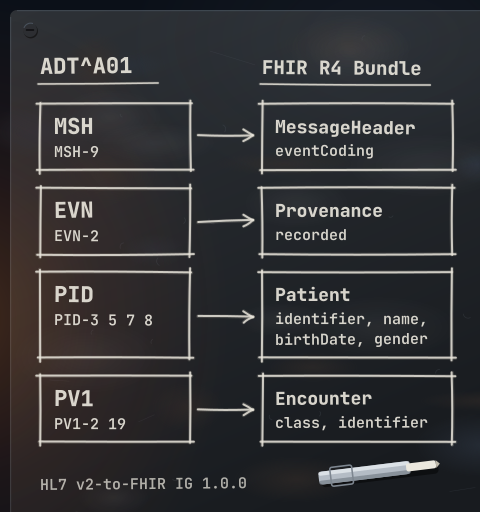
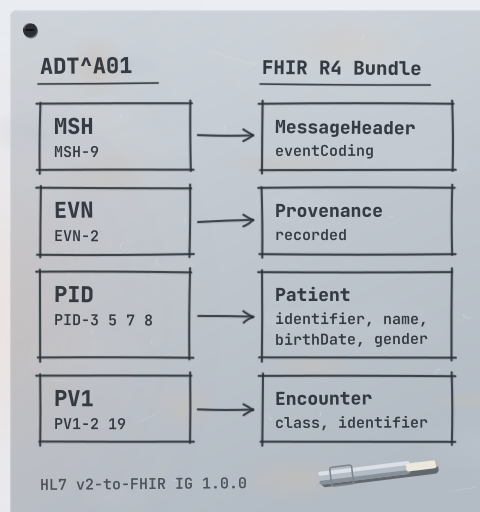
Take an ADT^A01 admit. MSH becomes the Bundle’s MessageHeader, with MSH-9 in its eventCoding. EVN becomes a Provenance, and EVN-2 is its recorded time. PID becomes the Patient: PID-3 to identifier, PID-5 to name, PID-7 to birthDate and PID-8 to gender. PV1 becomes the Encounter, with PV1-2 as its class and the visit number in PV1-19 as its identifier. AL1 and IN1 become AllergyIntolerance and Coverage the same way.
Open the v2 to FHIR converter to run your own messages through it, and the v2-to-FHIR mapping tables list every field HL7 maps.
Validate FHIR resources against their profiles
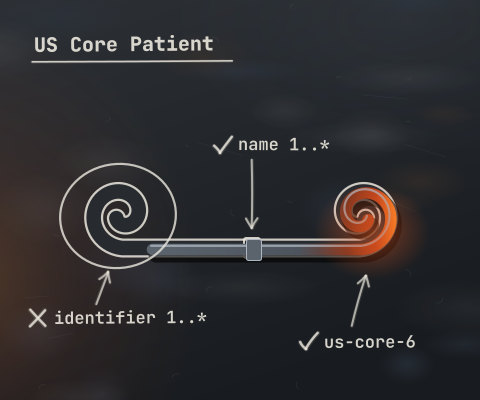
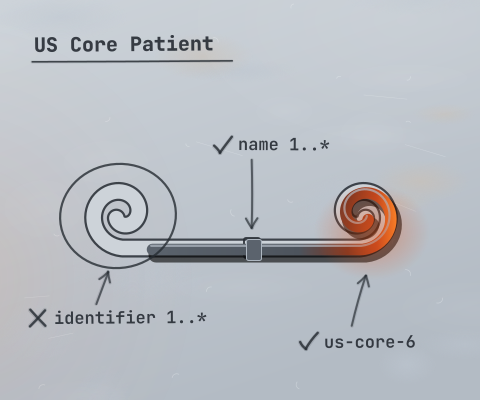
The FHIR parser opens a resource or a Bundle in JSON or XML and shows it as a tree beside its source, with every element named from the specification. Validation runs in your browser, against core R4, R4B, R5 or the R6 draft, or against an implementation guide’s profiles.
Check a Patient against US Core and the validator holds it to what US Core adds to the base resource: identifier and name are both required (1..*), and the us-core-6 invariant wants a given or family name, or a data-absent reason in their place. It also checks references, slices and the invariants FHIR defines on the core resources.
With terminology checks on, coded elements are checked against the value sets they are bound to. Try it in the FHIR parser.
Open and validate C-CDA documents
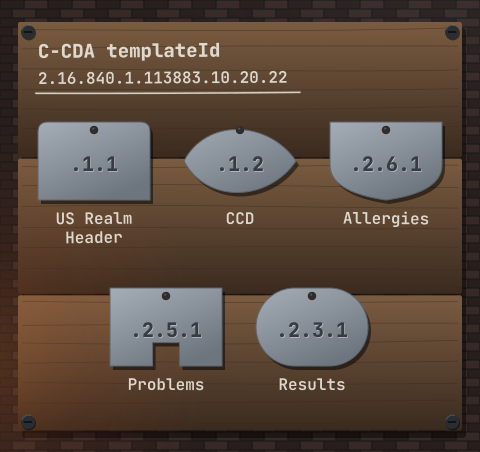
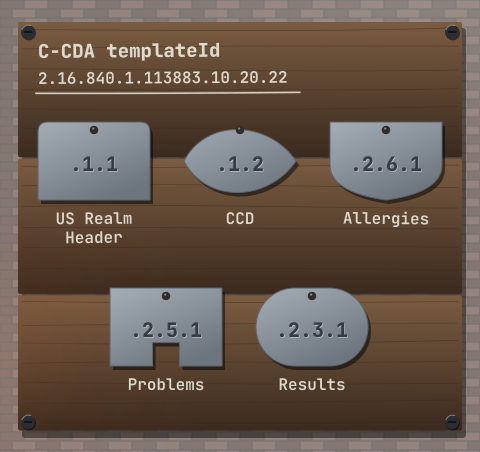
The CDA parser is a C-CDA viewer and validator in one. It renders the document, collapses long narrative blocks so the structure stays readable, and can mask the patient details in the header while you work.
A C-CDA declares its templates by templateId (US Realm Header, CCD, the Allergies or Problems section), and the workbench checks each template the document claims, with a link to that template’s definition. It also runs HL7’s Schematron for C-CDA 4.0 and 5.0.
Open a document in the CDA parser. If the document types are new to you, our C-CDA guide explains what each one carries.
Compare two messages or documents
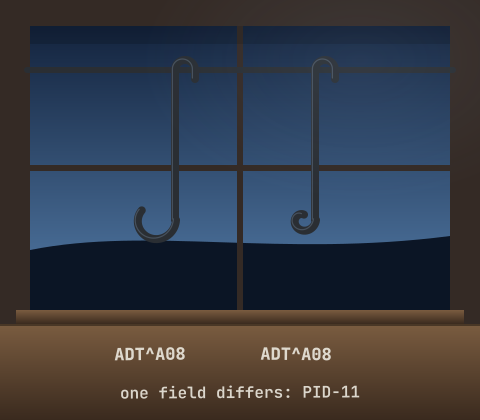
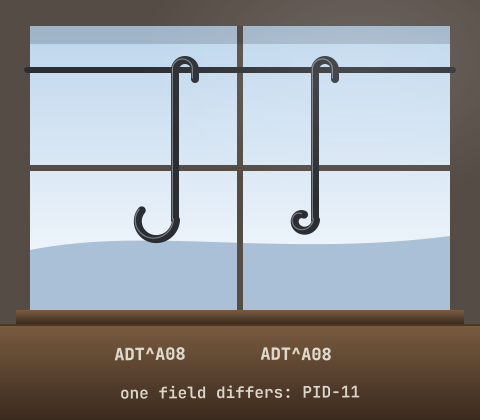
Message Diff puts two messages or documents of the same standard side by side: two v2 messages, two FHIR resources or two C-CDA documents. Use it to compare what a sender sent with what the engine delivered, or the same message before and after a mapping change.
It compares them by structure as well as by text, so a change in one field stands out from a change in formatting. Compare two of your own in Message Diff.
Redact, route, filter or split with rules
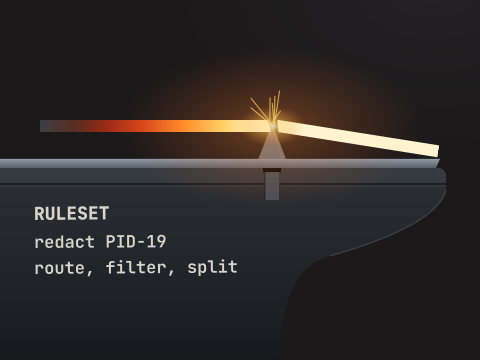
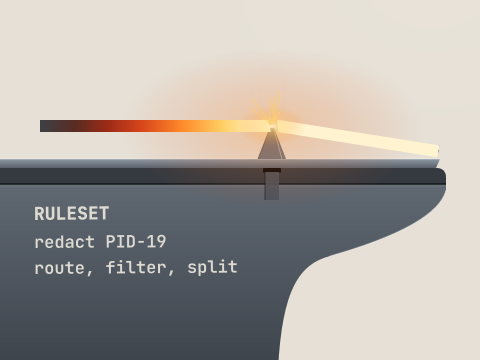
Rules work on a set of messages at once. A ruleset can redact fields, route messages, filter out the ones you do not need, or split a file into parts. A dry run shows what each rule would change, as a diff, before you keep the output, and saved rulesets sync to your account.
The example ruleset that ships with the workbench clears PID-19, the patient’s social security number, on every message, and you build your own from there. Build a ruleset in Rules. PHI masking, separately, hides values on screen while you work.
Build test messages and profile message sets
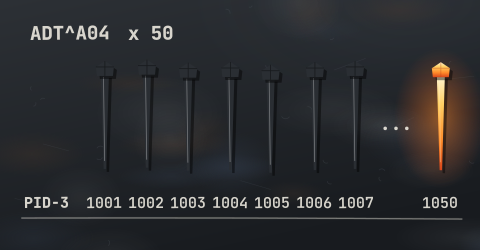
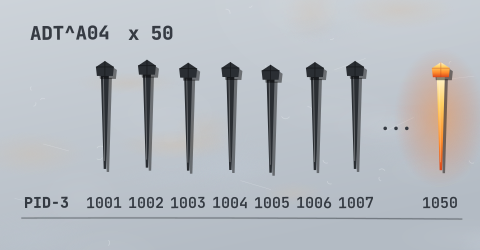
Builder makes test messages from a template you edit visually. Variables fill the fields that should change from one message to the next, correlation rules keep related fields consistent, and batch generation writes as many as you need: fifty ADT^A04 registrations with fifty different patient IDs, for example.
Analysis profiles a set of messages you already have, field by field, and raises quality alerts on what it finds. For HL7 v2 conformance, the workbench ships 20 conformance profiles from IHE, CDC and NIST, and you can add your own, with field constraints and predicate rules. Open Builder or Analysis to try them.
The quick references
The quick references cover HL7 v2, v3, CDA and FHIR, with terminology search across them. They are open without an account. In 2.0, each v2 segment, field, data type, table, structure and event page also shows what changed from the version before it.
Where your messages go


Messages are parsed and validated in your browser and are never uploaded. Optional terminology checks (off by default) send only the codes being checked. Saved conversion templates and rulesets sync to your account. The workbench’s security notes and privacy policy have the details.
Get started
Create a free account at saga-it.com/hl7workbench and the tools open in your browser. The parser guide is the place to start. Start with a message you already know, or pick one of our sample HL7 messages, and run it through the v2 to FHIR converter.
Saga’s integration team builds these interfaces for hospitals and health-tech vendors. HL7’s map covers the standard segments; a production migration adds local code sets, Z-segments and identifier systems. If that is the project in front of you, see HL7 integration and FHIR API integration.